Guide 3 of 7
Clip a game with tags
Clipping happens while the game plays. Hold a key when something happens, let go when it’s over, and the clip is saved with its tag.
Steps
Steps
-
Open the game
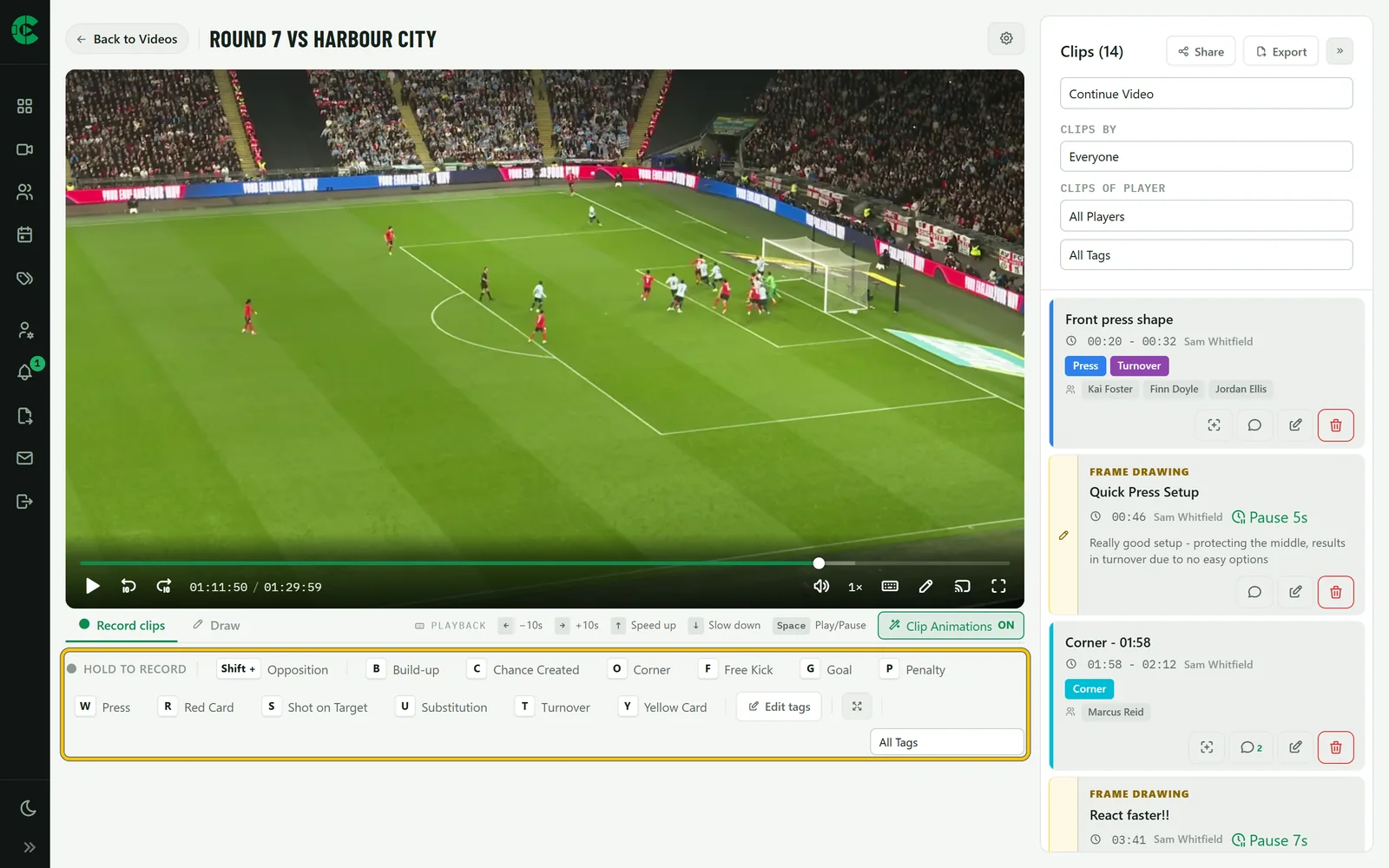
Open a video from Videos or your dashboard. The player is on the left and the clips are on the right. Under the player, Record clips lists your tags with the key for each one.
-
Hold a tag’s key to record
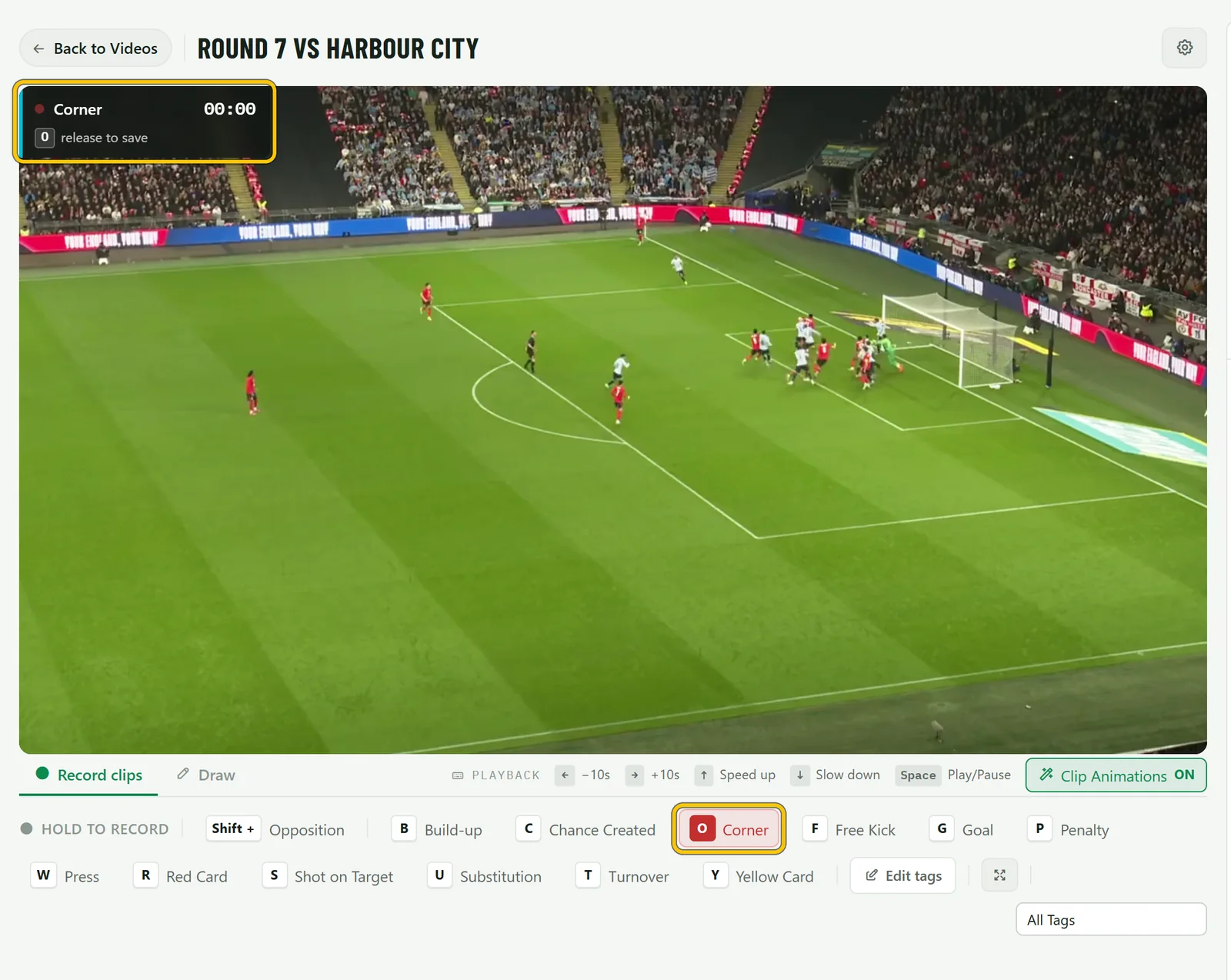
Play the video. When a moment starts, press and hold its tag’s key, for example O for Corner. A red marker shows while it records. Let go when the moment’s over and the clip is saved, named after the tag and the time.
Good to know Hold Shift as well to tag the clip against the other team. It takes the tag’s opposition colour so both sides stay apart.
-
Add a note
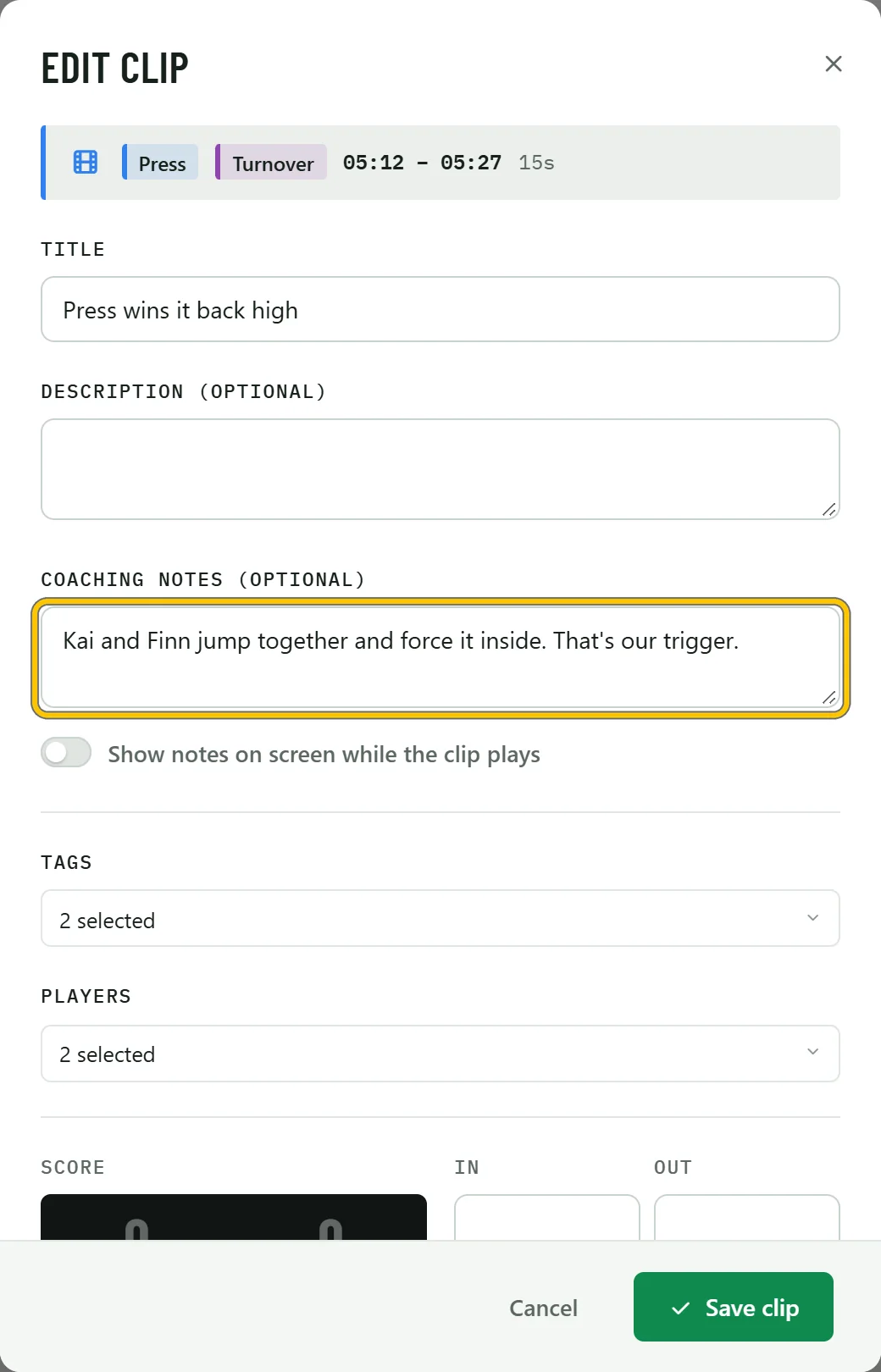
Choose the pencil on a clip to edit it. Add a coaching note and turn on Show notes on screen to display it while the clip plays. You can also rename the clip, change its tags, add the players involved and trim the start and end.
-
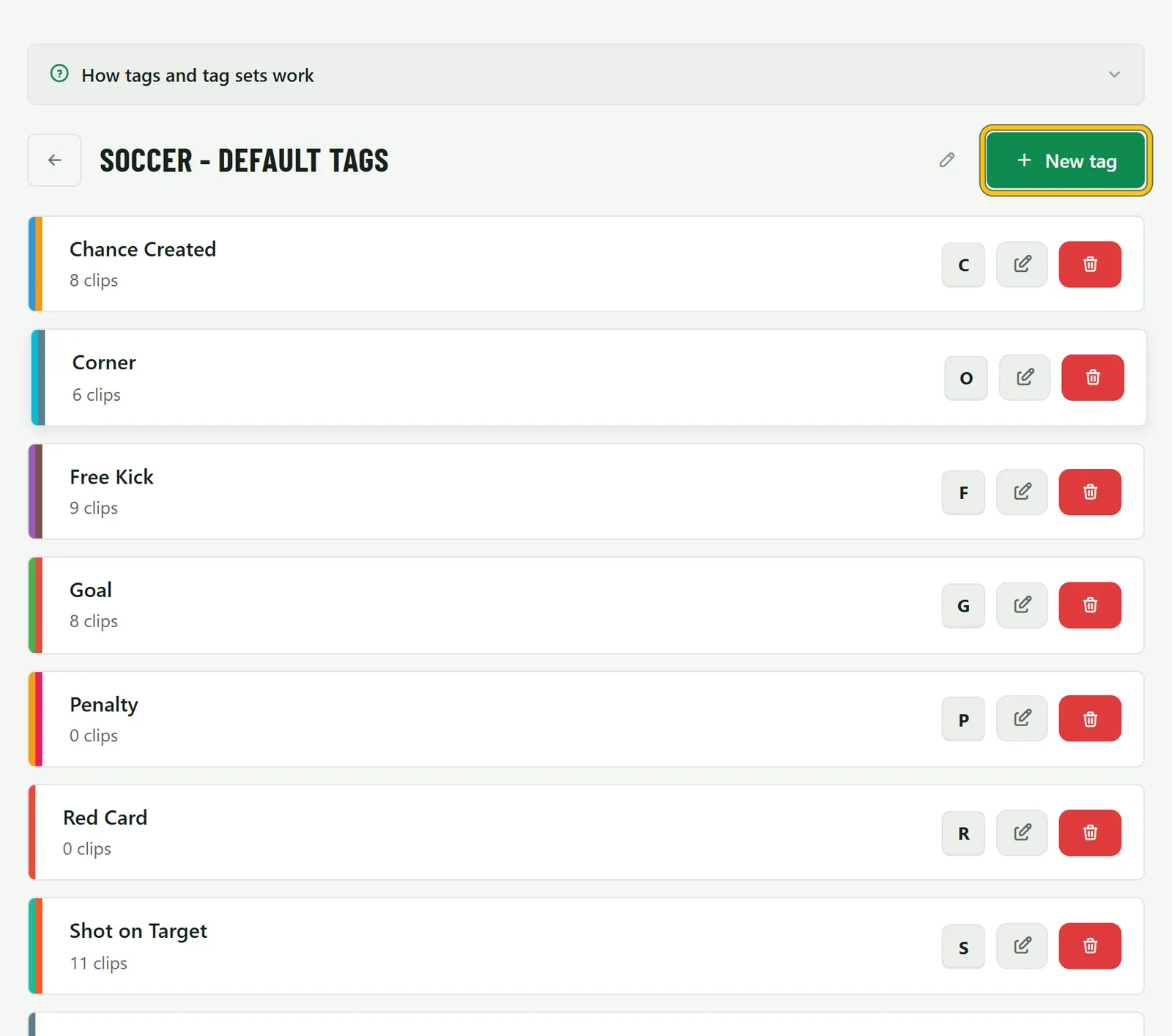
Set up your own tags
Go to Video Tags in the menu to change the tags you clip with. Each tag has a colour and a key, and you choose how it records: Hold to record, Start / stop with a press, or a Fixed length. A tag can start a few seconds early so you never miss the build-up, and a Goal tag can keep the score.
-
Clip on a phone
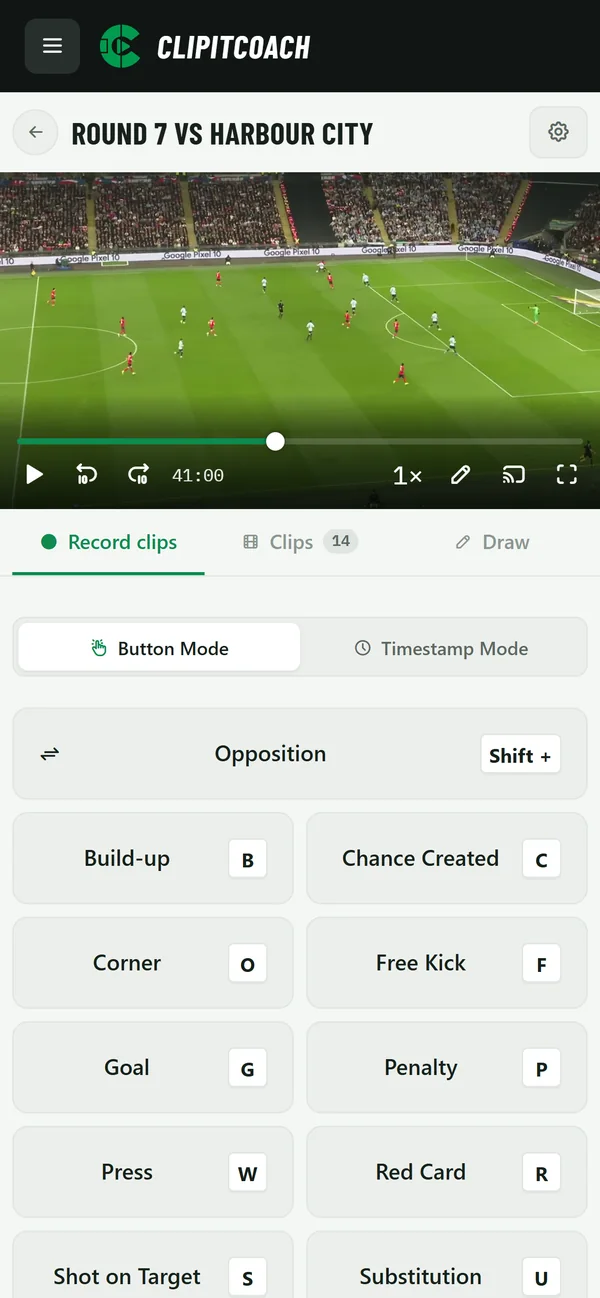
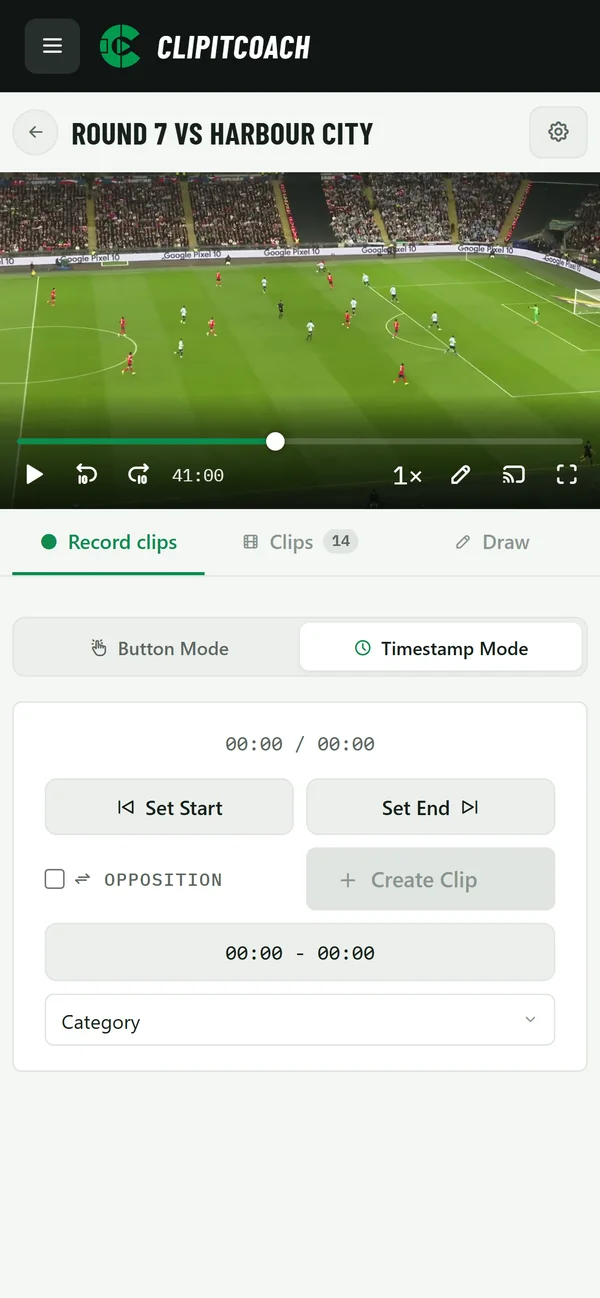
On a phone, open Record clips under the video. Press and hold a tag’s button to record, the same as holding its key. Timestamp Mode lets you set a start and an end instead, then pick the tag and choose Create Clip.
-
Find clips later
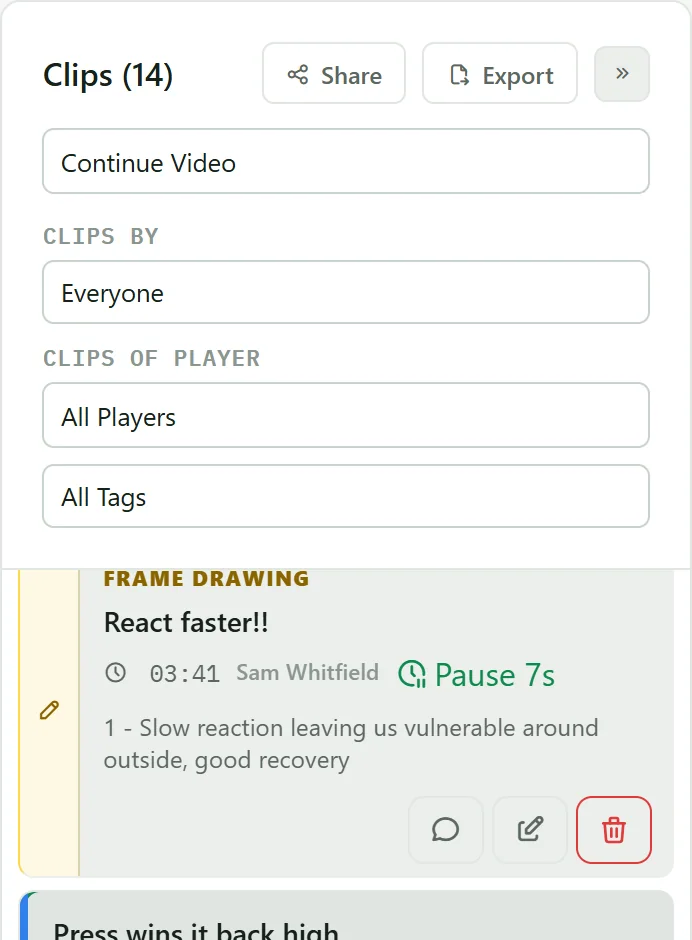
The clips list can show clips by who made them, by player and by tag, so you and your players can go straight to the moments that matter.