Guide 4 of 7
Share clips with your players
Clips are most useful when the right players watch them. Send them to the whole team, a group or one player, and they’ll be waiting on their dashboard.
Steps
Steps
-
Choose Share on the clips list
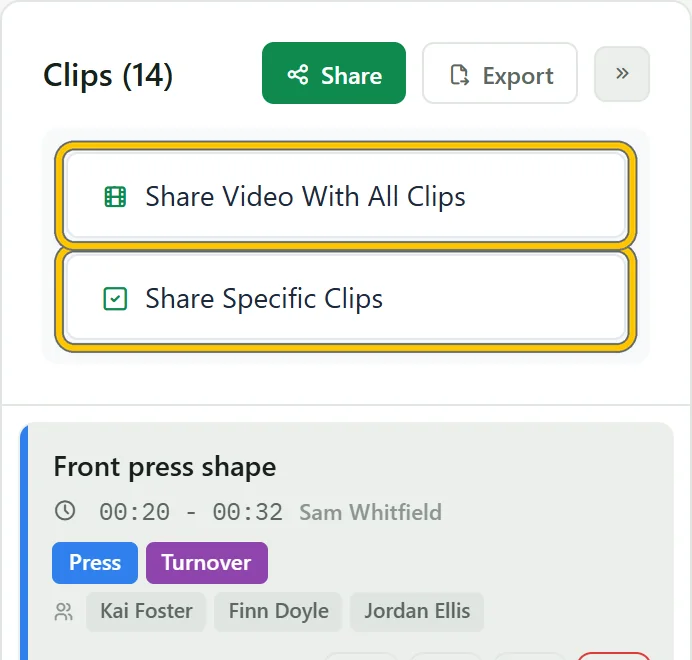
On the watch page, choose Share at the top of the clips list. Share Video With All Clips sends everything; Share Specific Clips lets you pick.
-
Pick the clips
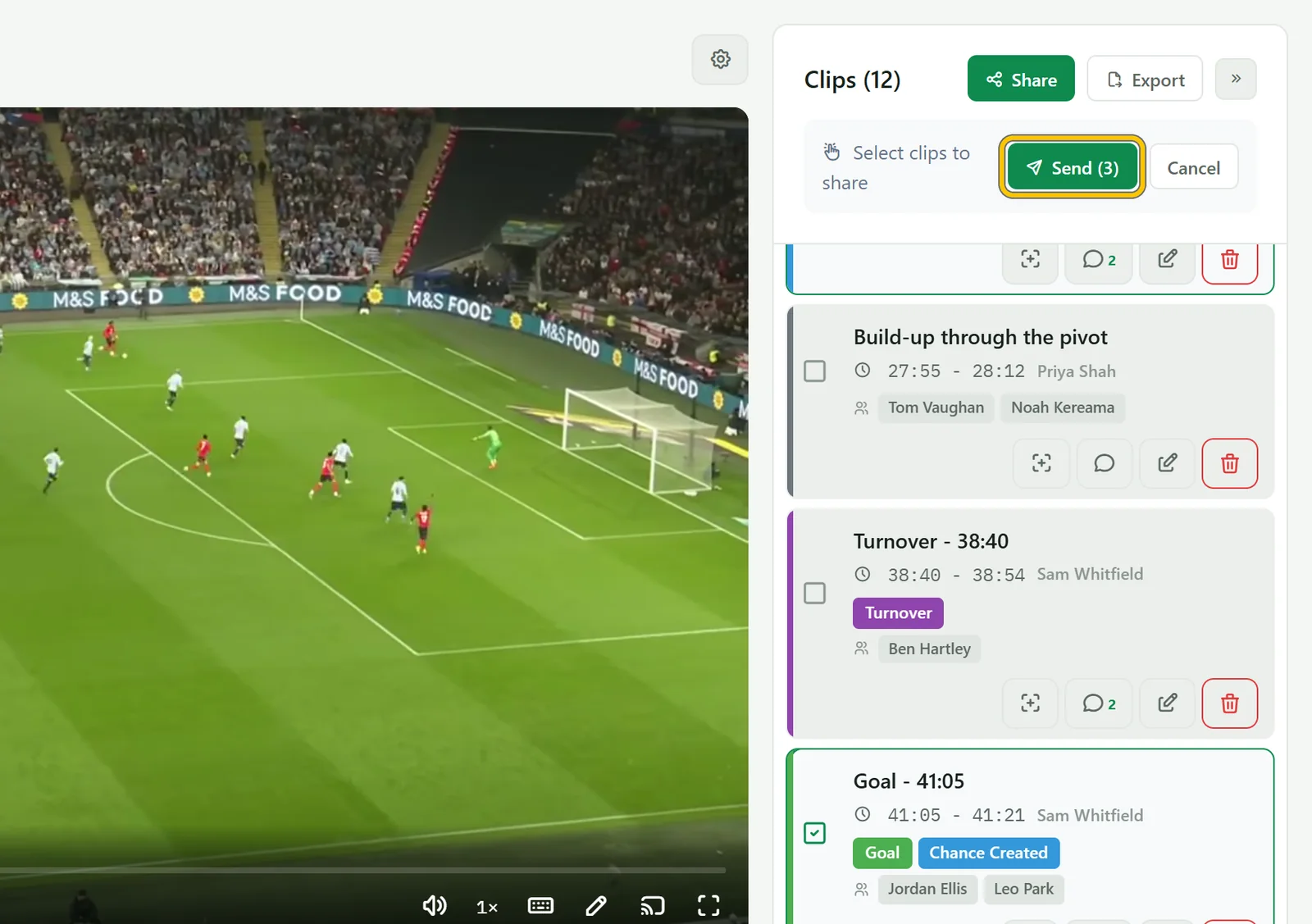
Tick the clips you want to send, then choose Send.
-
Choose who gets them and add a note
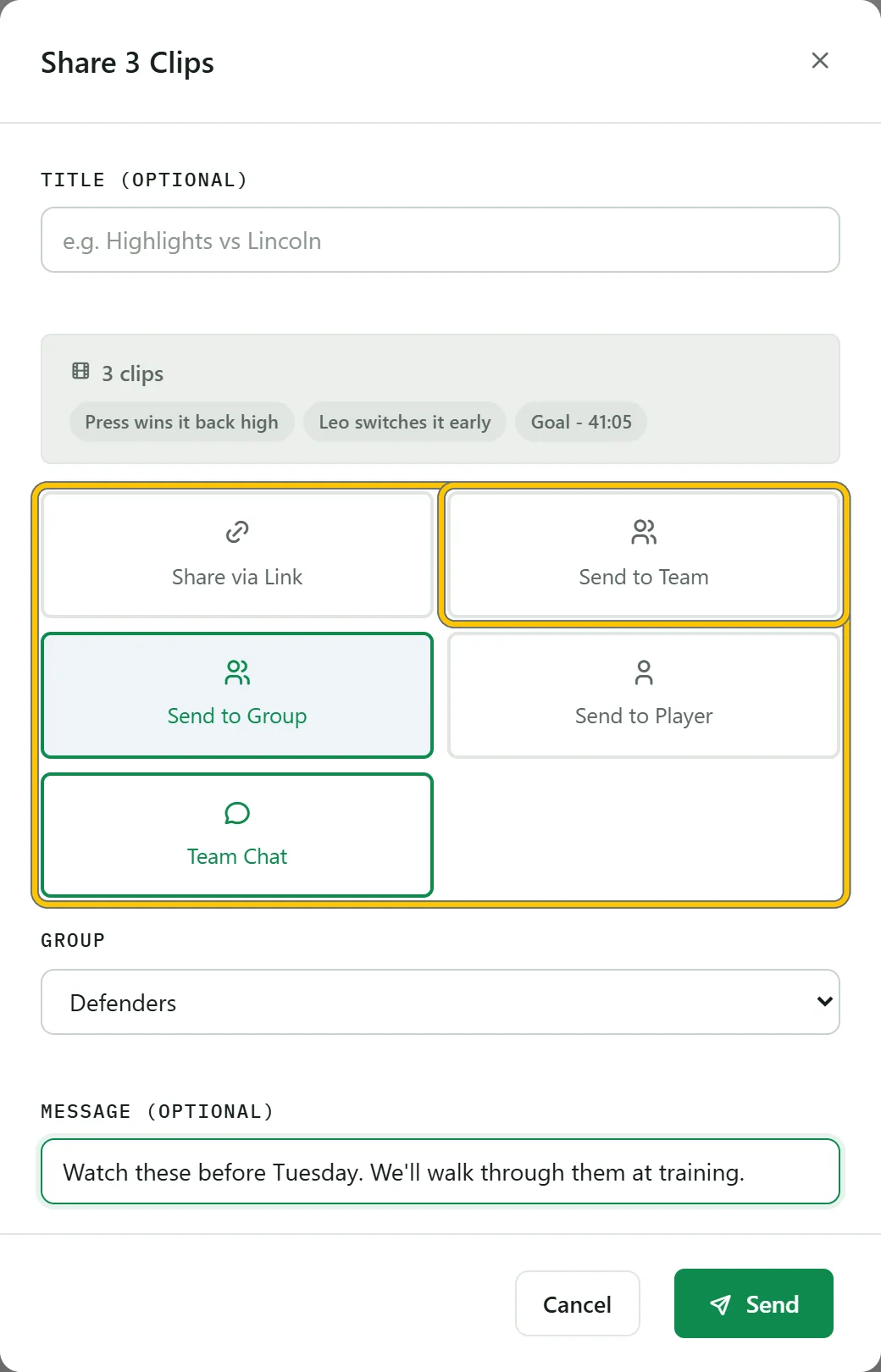
Send them to the team, to a group, or to one player. Share via Link makes a link you can paste anywhere, and Team Chat posts the clips into your team chat. Add a message saying what to look for, then choose Send.
Good to know Only people on your team can open shared clips. A link on its own never lets anyone outside the team watch.
-
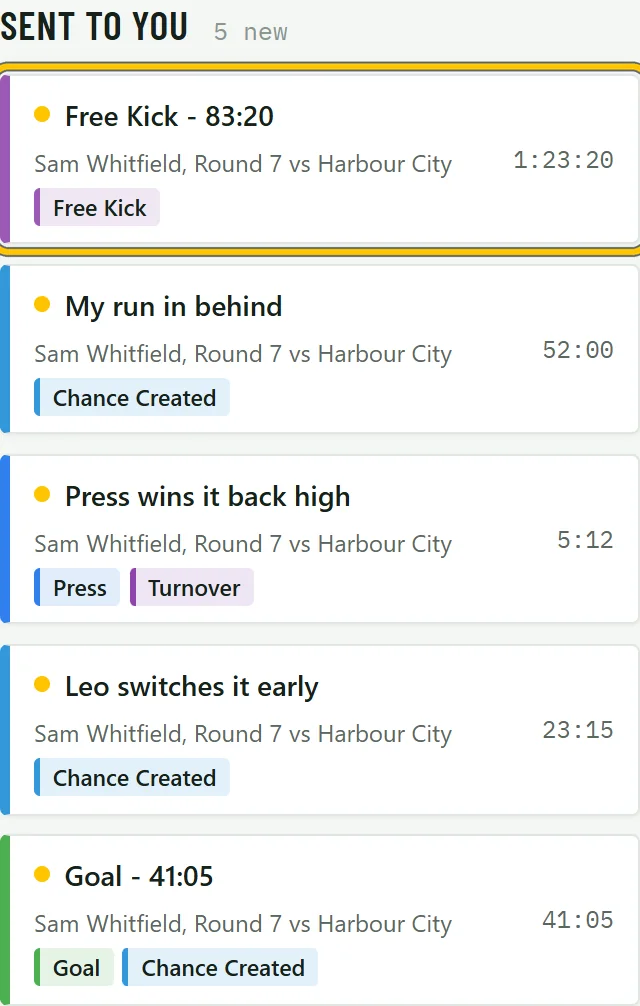
Players find them under Sent to you
Players get an email, and the clips appear under Sent to you on their dashboard, with a yellow dot until they’ve watched them.
-
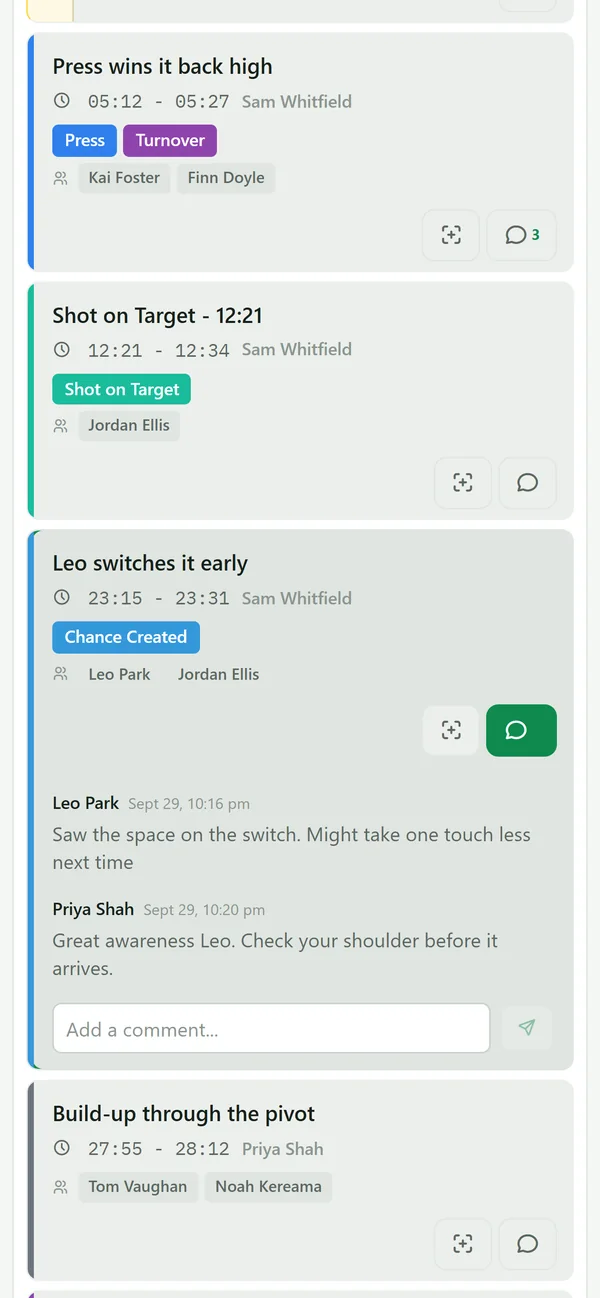
Talk it through in the comments
Every clip has its own comments. Choose the speech bubble on a clip to read them and reply, so the conversation stays with the moment.
-
Share the whole game
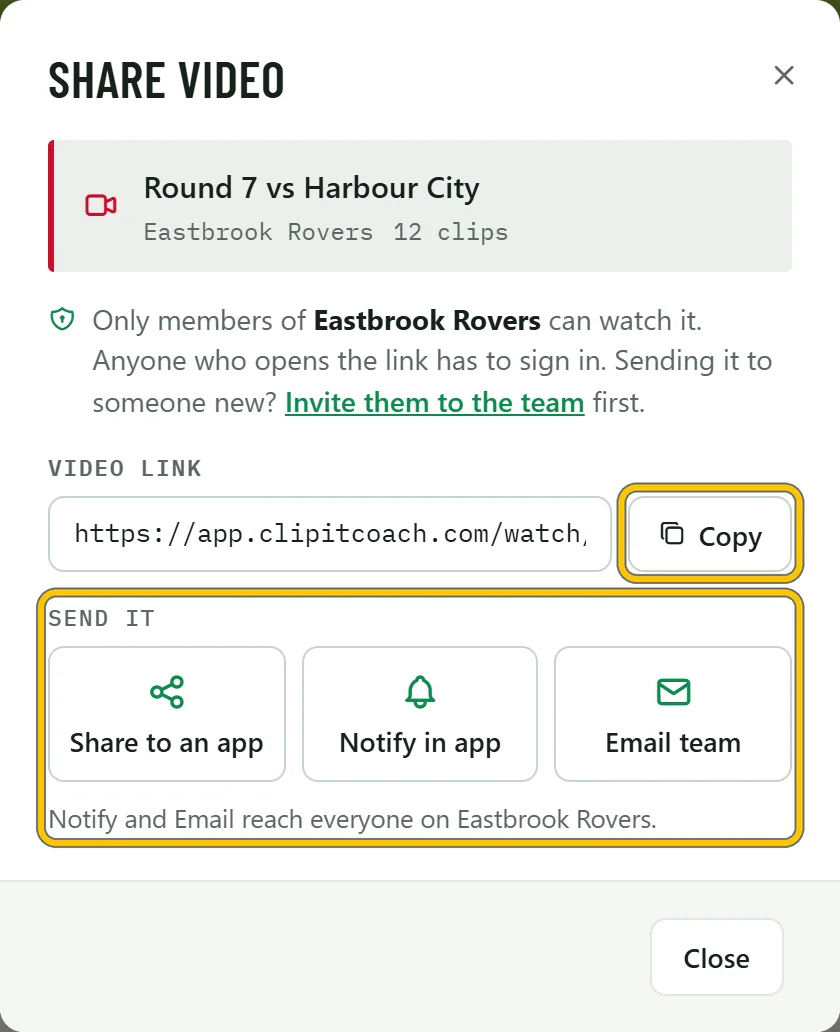
To share a whole video, choose Share on it in Videos. Copy the link or send it to an app, or choose Notify in app or Email team to tell everyone it’s ready. Only members of your team can watch it.