Guide 7 of 7
Team chat and the schedule
Keep the conversation and the calendar next to the film. Team chat and the schedule are on every team page.
Steps
Steps
-
Talk in team chat
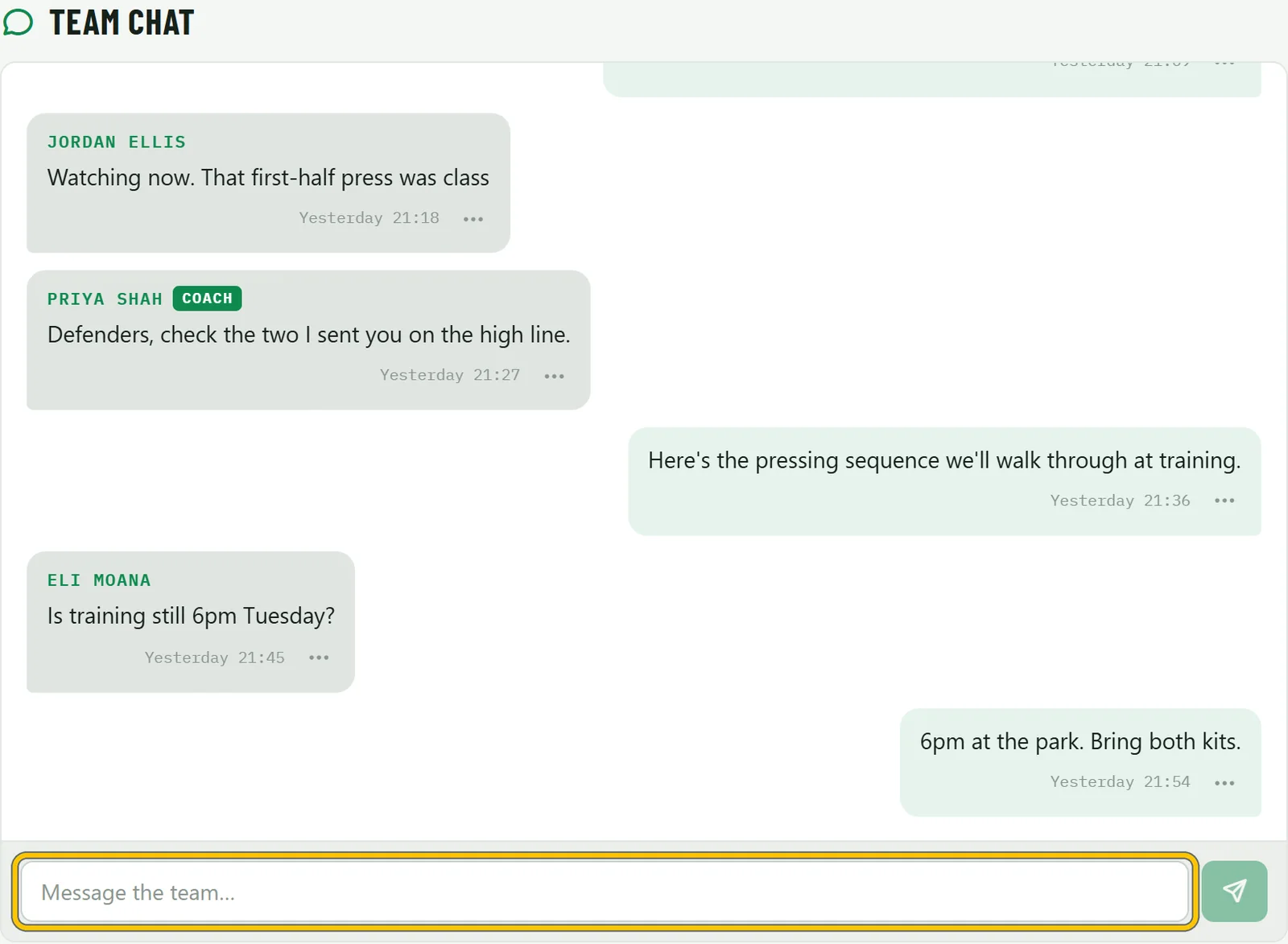
Open your team and choose Chat. Everyone on the team can read and post, and coaches have a badge. The first time, you’ll be asked to accept the chat rules. To post clips into the chat, use Share on the clips list and choose Team Chat.
-
Add a game or training
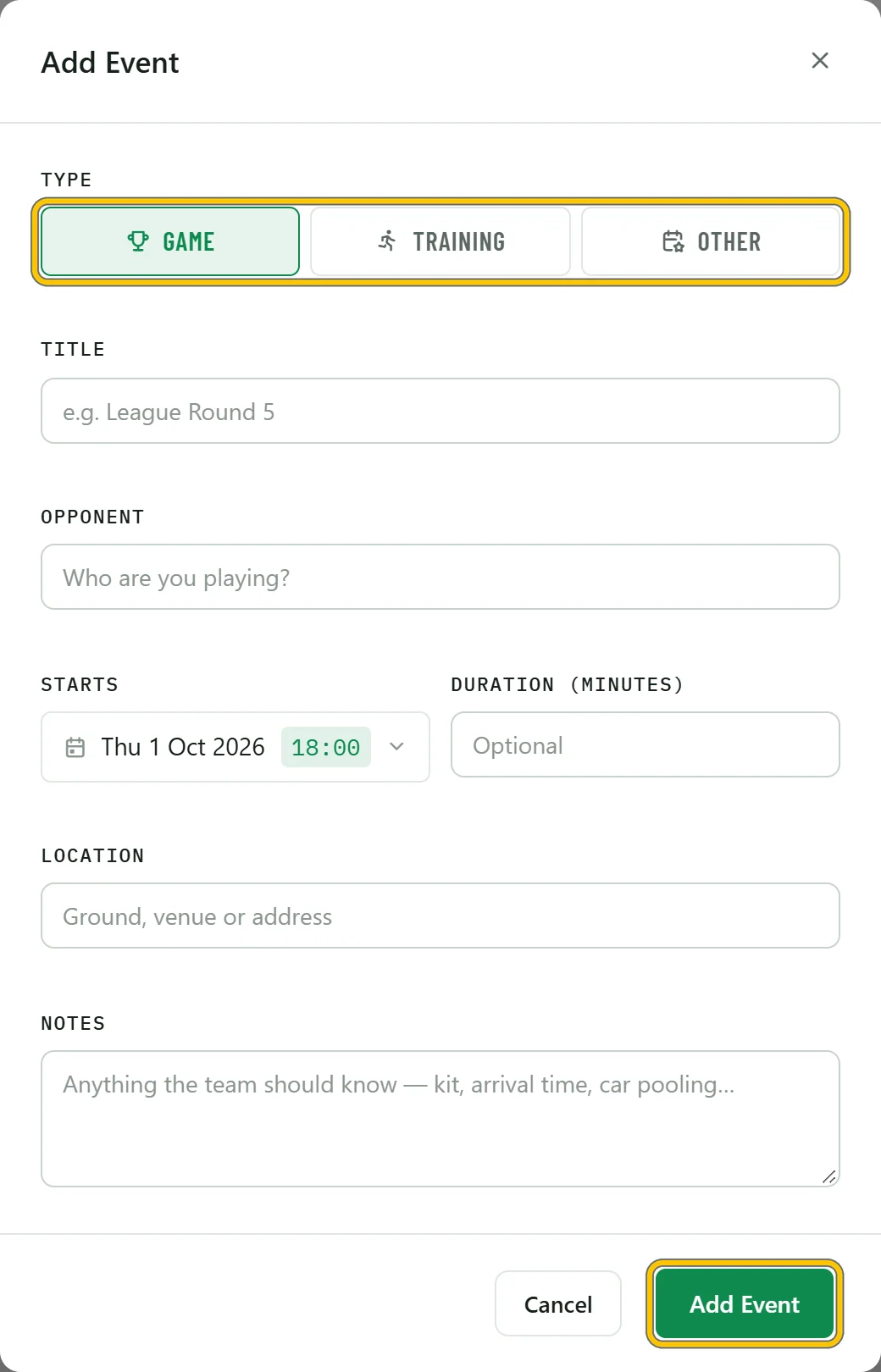
Choose Schedule, then Add Event. Pick Game, Training or Other, and add the opponent, start time, location and anything the team should know.
-
Players reply with one tap
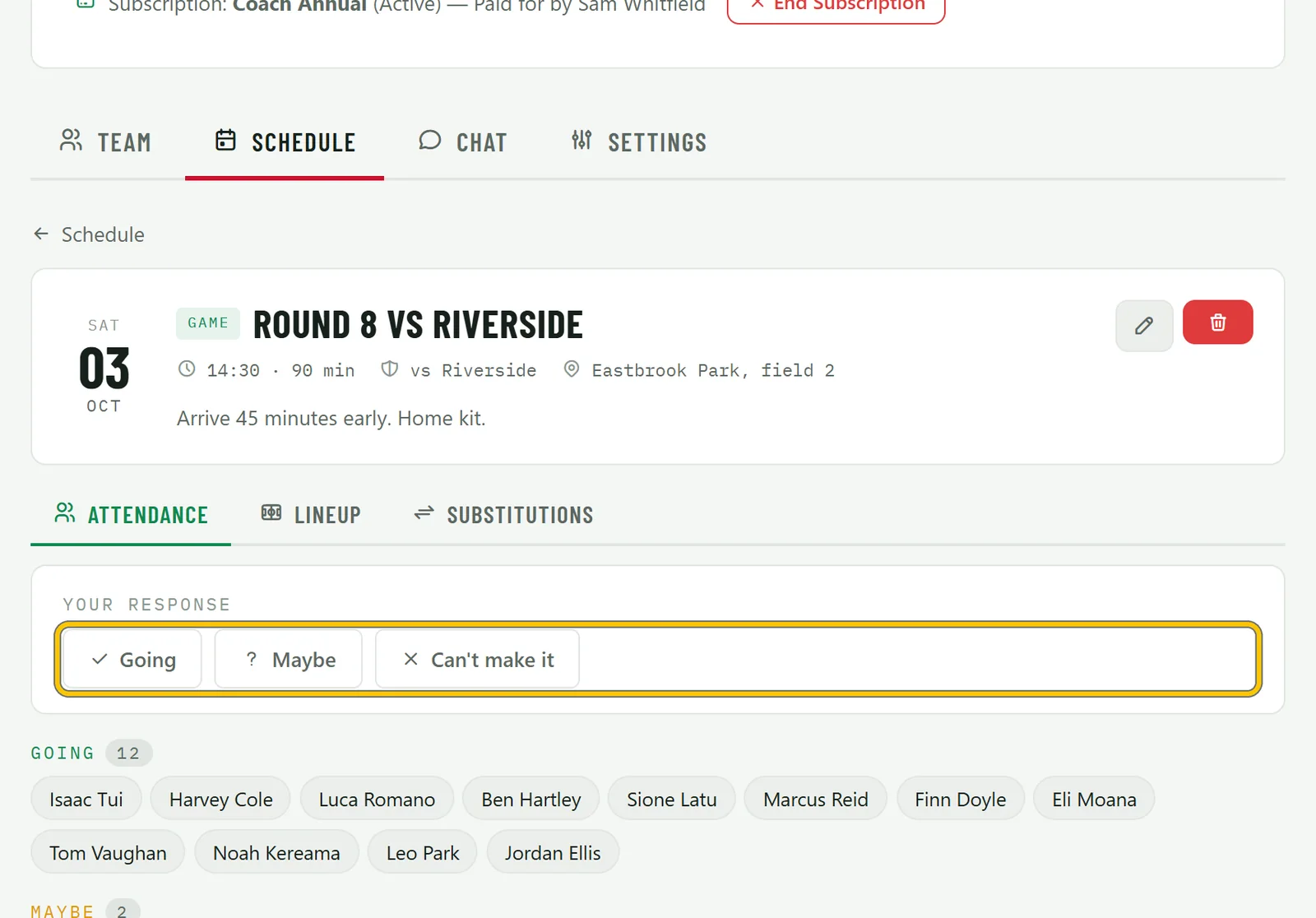
Players choose Going, Maybe or Can’t make it on the event or on their dashboard, and you can see who’s coming.
-
Plan the lineup
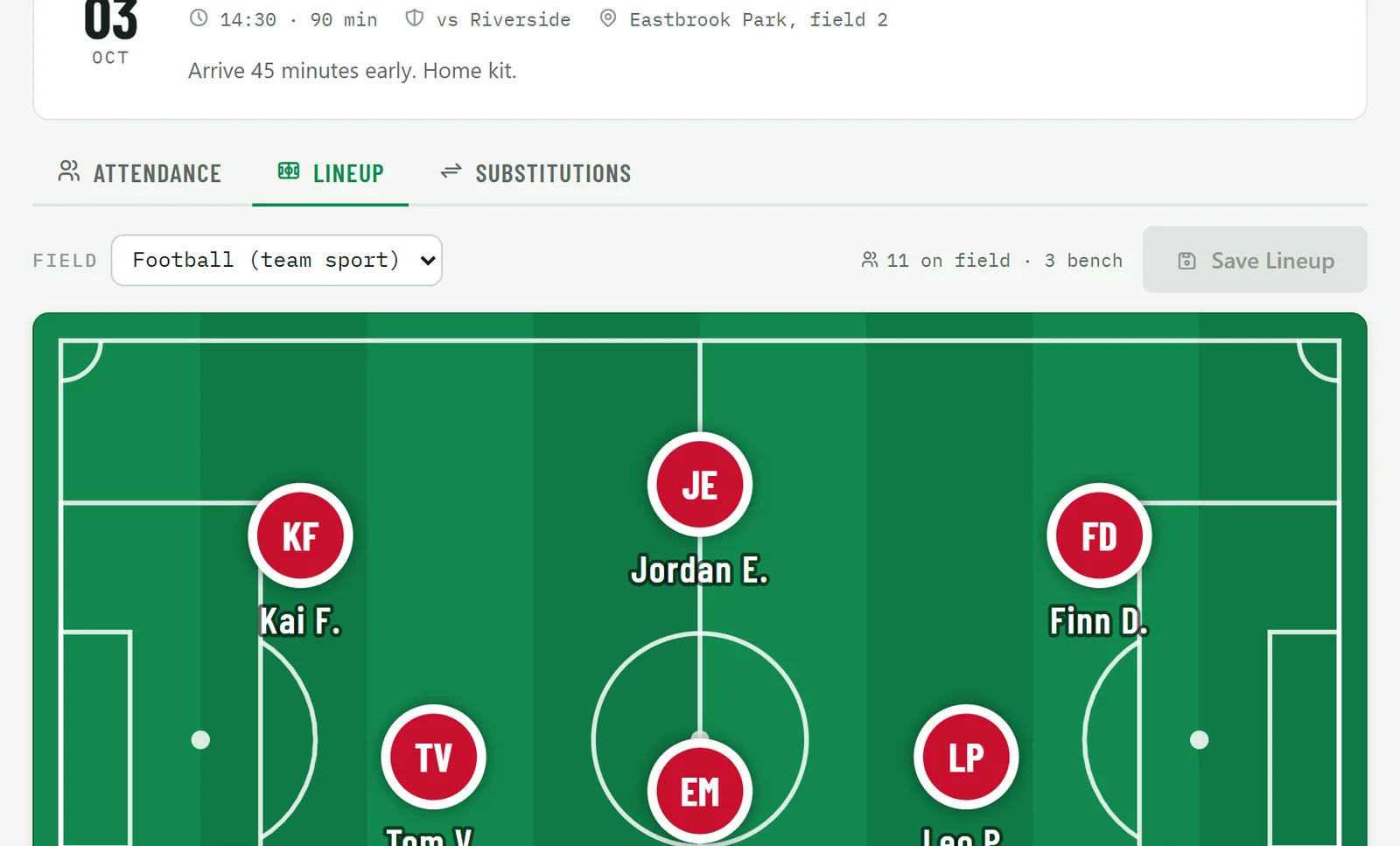
On a game, choose Lineup and place your players on the pitch, then Save Lineup. Substitutions lets you plan changes by the minute.
-
The next game, on everyone’s dashboard
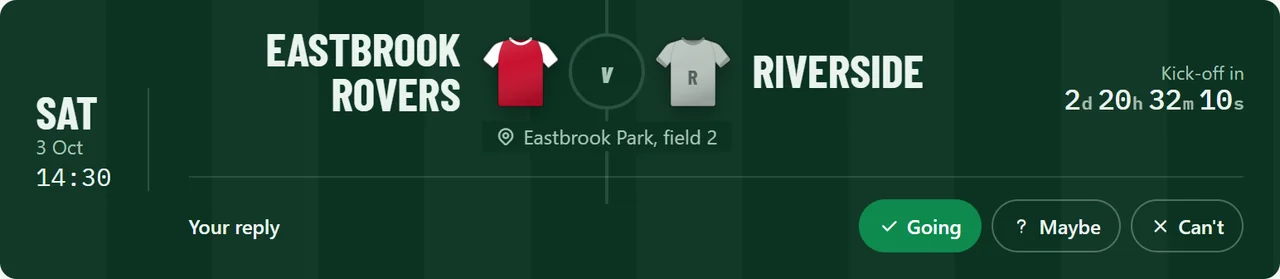
The next game in the coming week sits at the top of the dashboard with a countdown, so nobody has to ask when kick-off is.