Guide 10 of 10
Make fixture, half-time and full-time posts
Every game has a Matchday tab. Announce the game, type in the score at the break and after the whistle, and each post comes back as a short video and a photo, with both teams’ logos.
Matchday posts need the Coach plan. Typing in the result works on every plan. See the plans
Steps
Steps
-
Open the game’s Matchday tab
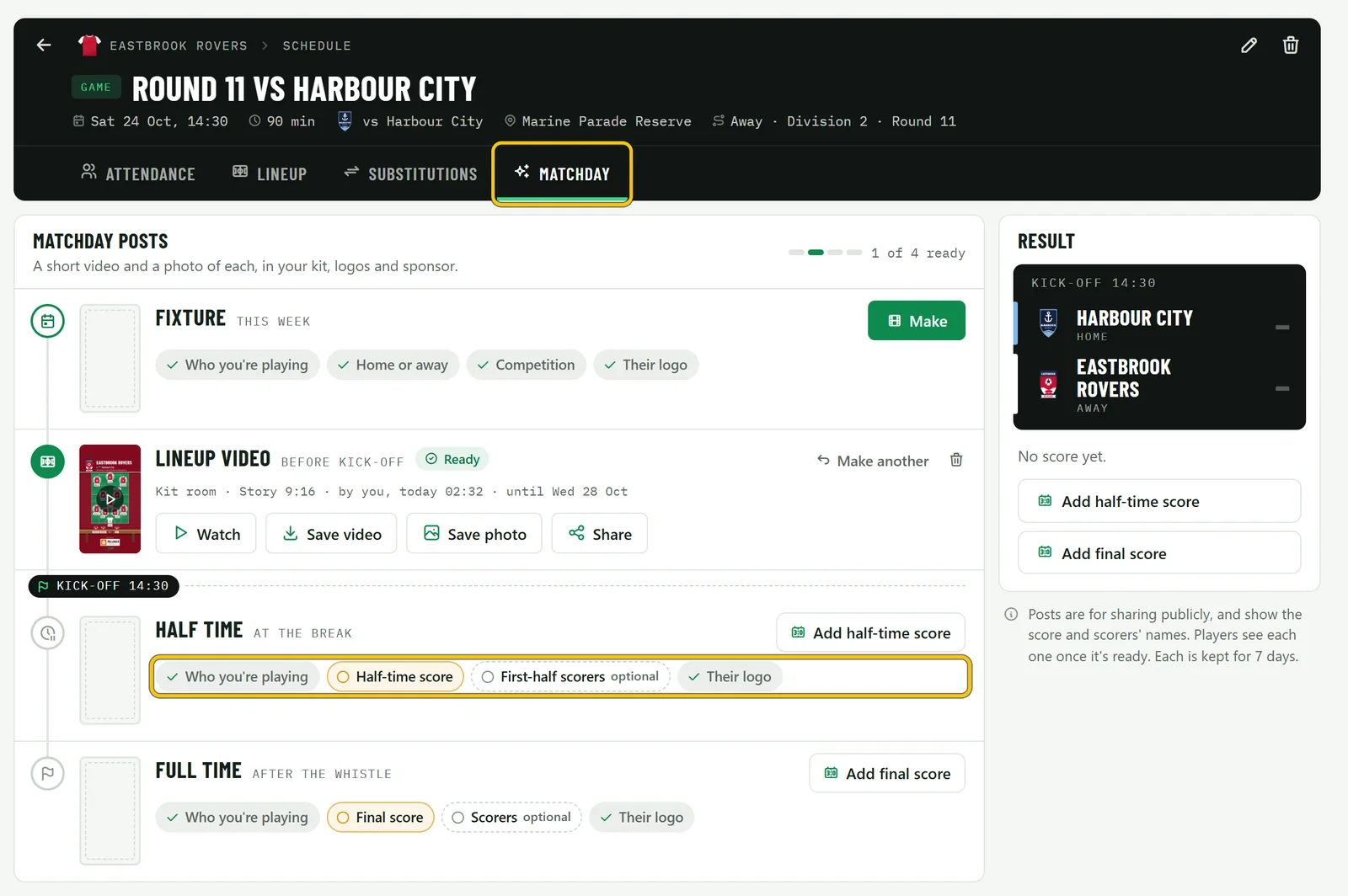
Open the game on your team’s Schedule and choose Matchday. It lists four posts in the order a game day runs, Fixture, Lineup video, Half time and Full time, with the Result beside them. The lineup video is the same one as on the Lineup tab. Coaches and the team’s owner make the posts, and a coach types in the result.
Each post shows what it needs as chips. A tick means it’s there; choose any other chip to fill it in, and the ones marked optional only make the post better. Who you’re playing, home or away and the competition come from the game, and the opponents guide covers adding their logo and kit.
-
Make the fixture post
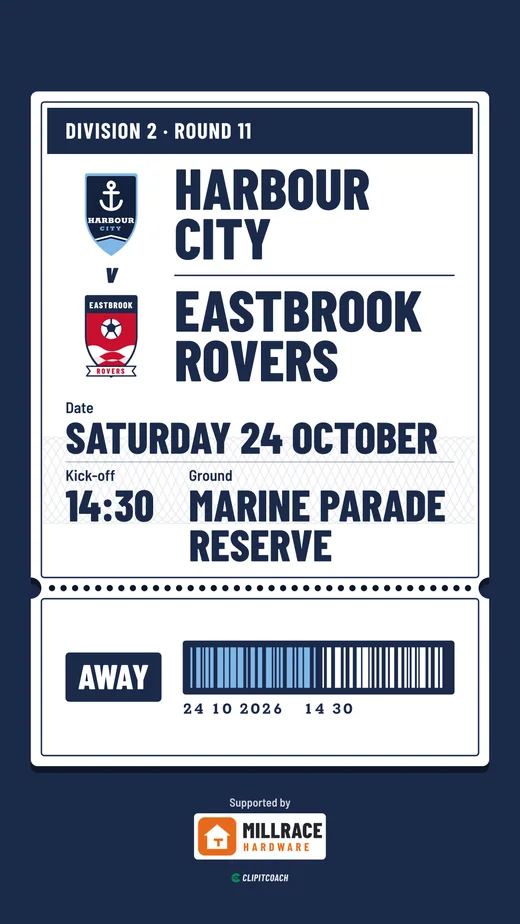
On Fixture, choose Make. Pick a Look: Team sheet, Kit room and Broadcast carry on from the lineup video, and Ticket and Scoreboard are only for posts. Then pick the Format and the Kit (at an away game it starts on your away kit, if you have one), and whether to include your Sponsor logo. Choose Make post.
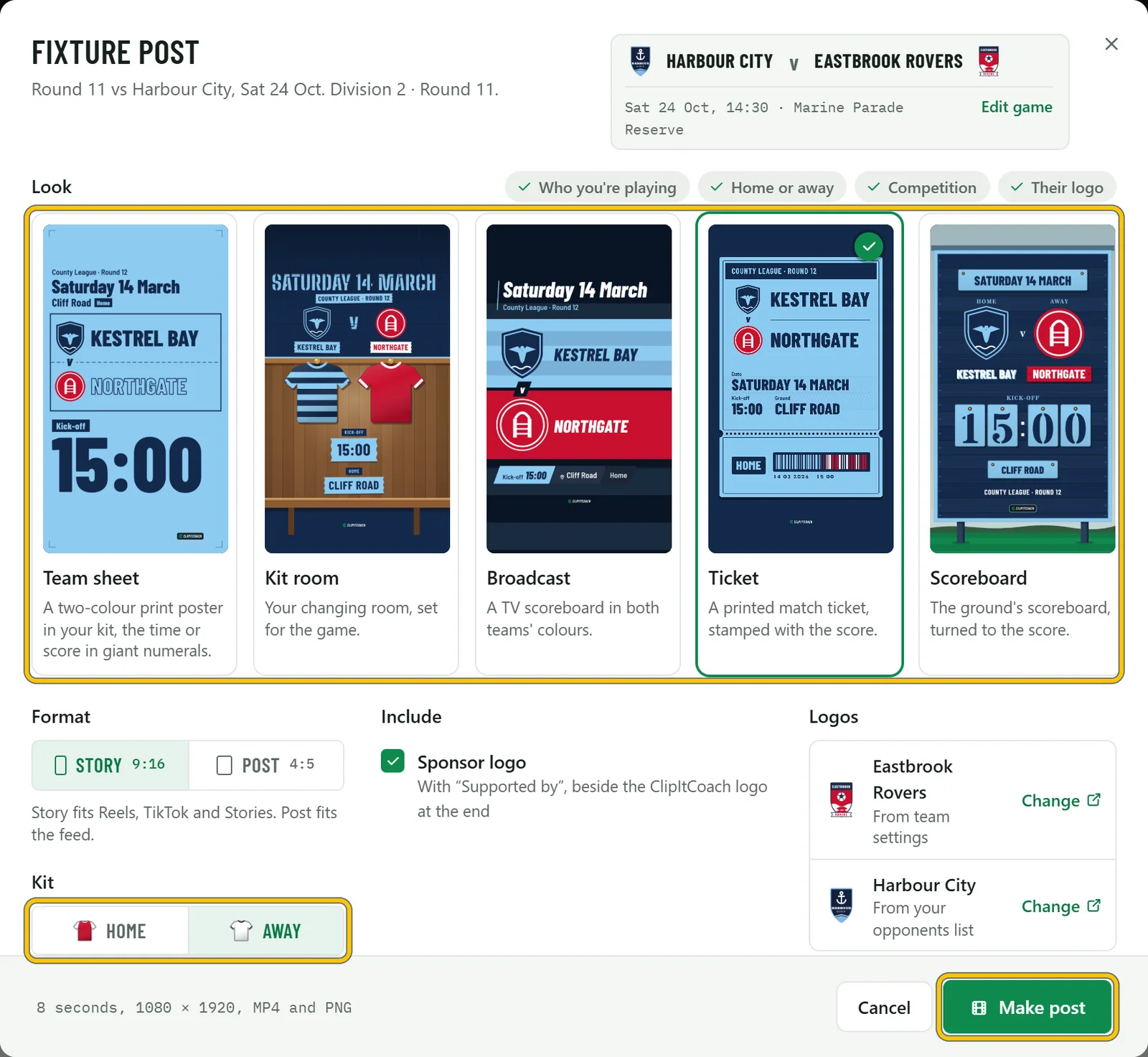
Good to know Each post is a few seconds of movement that settles into the finished picture, and that last frame is saved as its photo.
-
Save it and share it
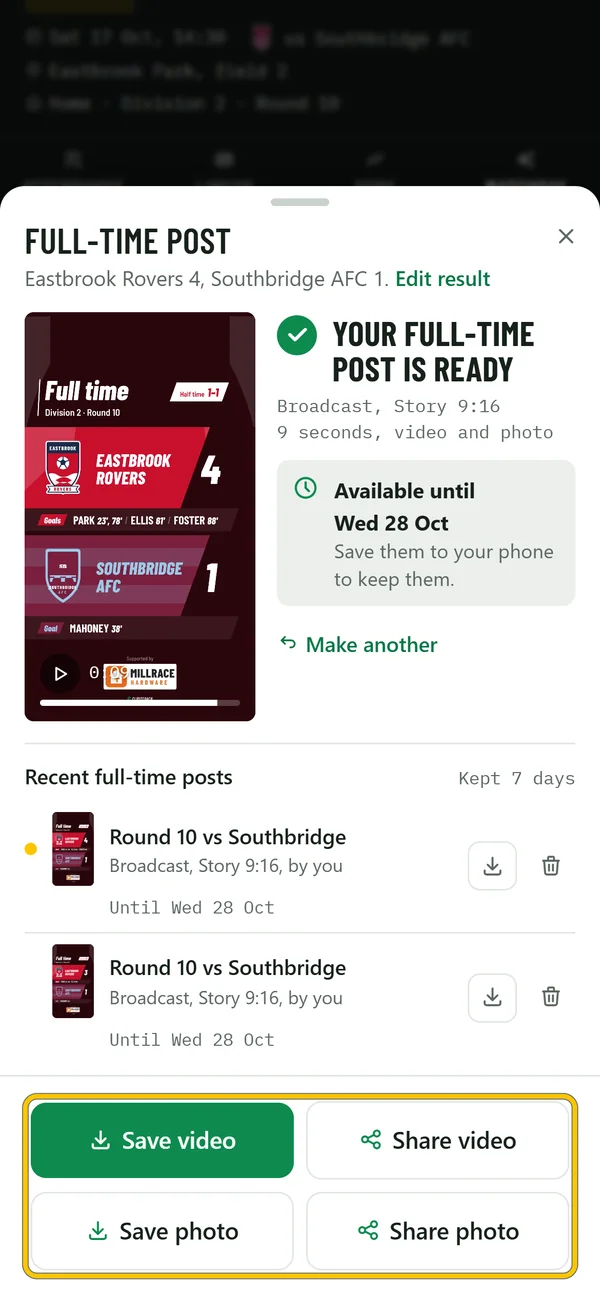
It takes about a minute, and you get a notification when it’s ready. Save video and Save photo download the post, and Share video and Share photo send it to another app where your browser can. Back on the Matchday tab, the post has Watch, Save video, Save photo and Share.
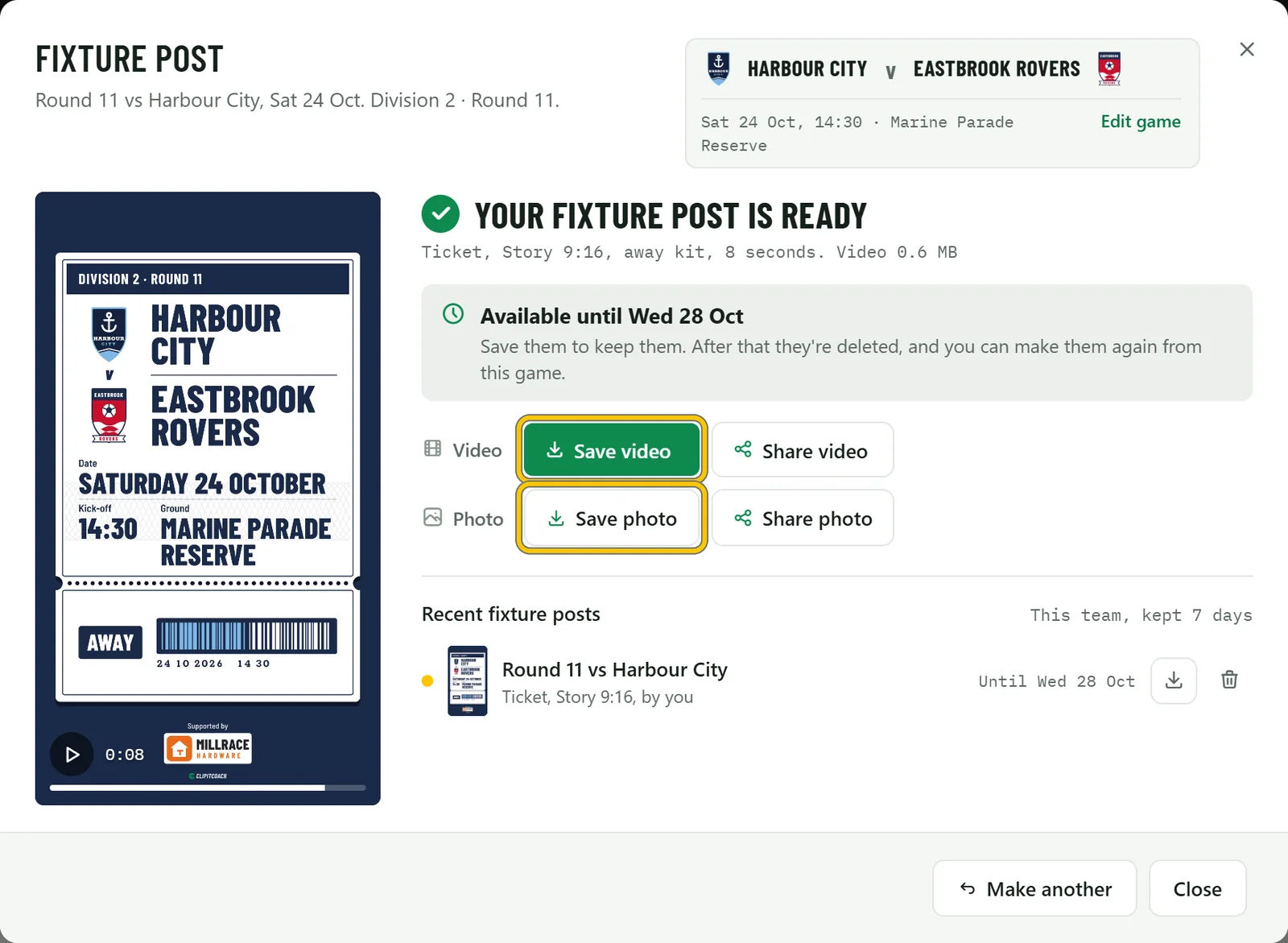
Good to know Players see each post on the Matchday tab once it’s ready, and can save and share it too. Posts are kept for 7 days, so save the ones you want to keep.
-
Add the half-time score
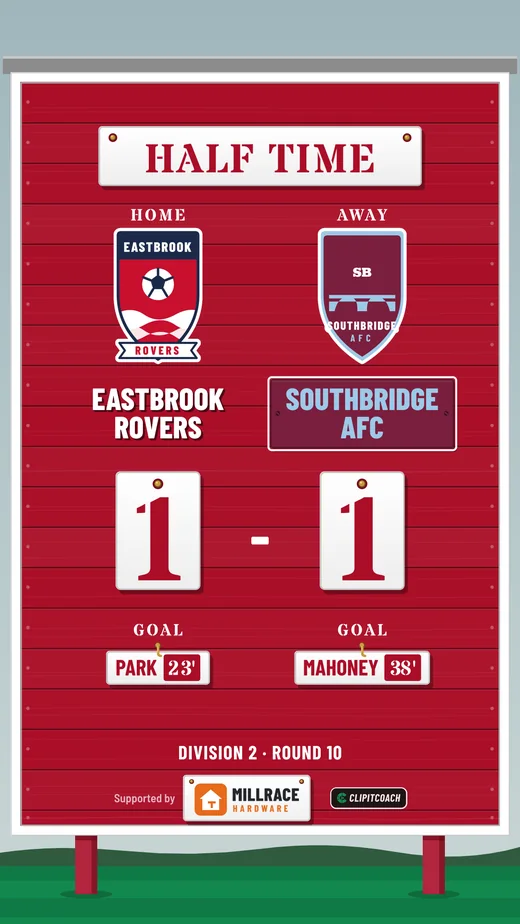
At the break, choose Add half-time score on the Result card and set the score with − and +. Under your scorers, choose Add and tap a player once for each goal; the bench and the rest of the squad are there too, and in football there’s Own goal too. Tap a scorer’s name to add the minute. Their scorers are optional: type a name and choose Add.
Choose Save result. Half time’s Make is now ready, and works like the fixture post.
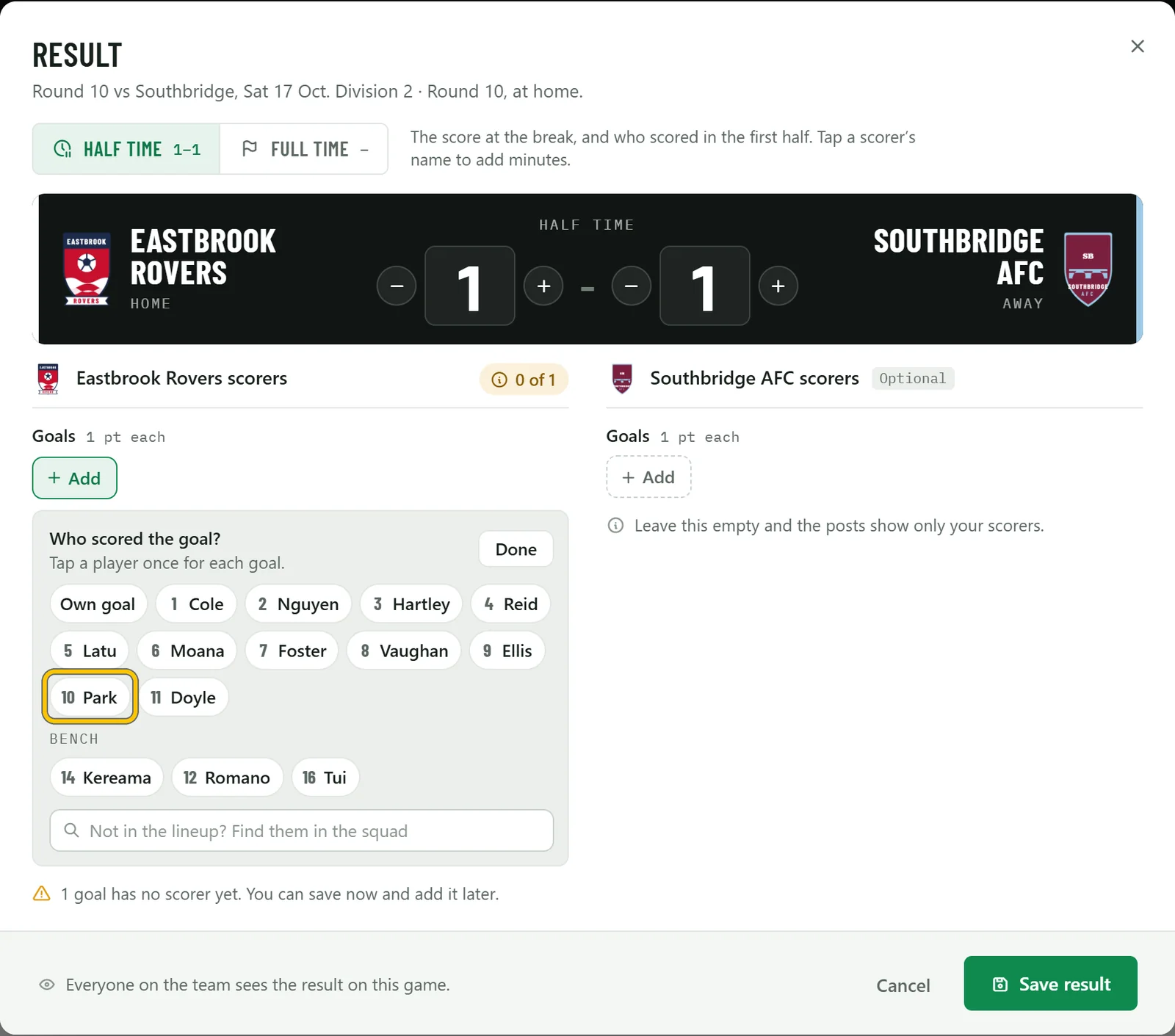
Good to know Scorers don’t have to add up to the score. Every post looks finished with the score alone, and you can add scorers later.
-
Add the final score
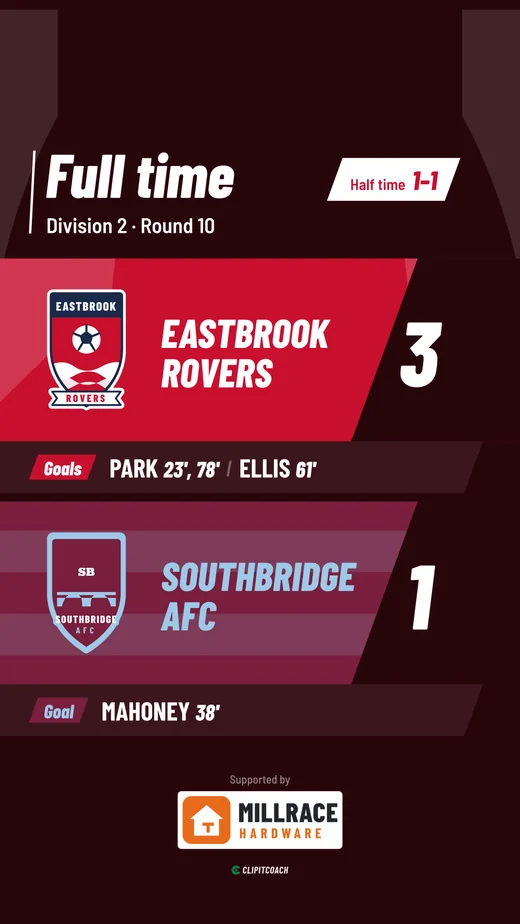
After the whistle, choose Add final score. The dialog opens on Full time with the half-time score under it. Add the second-half scorers the same way. First-half goals are already marked, and tapping a scorer’s name lets you set each goal’s half and minute.
Choose Save result, then Make on Full time.
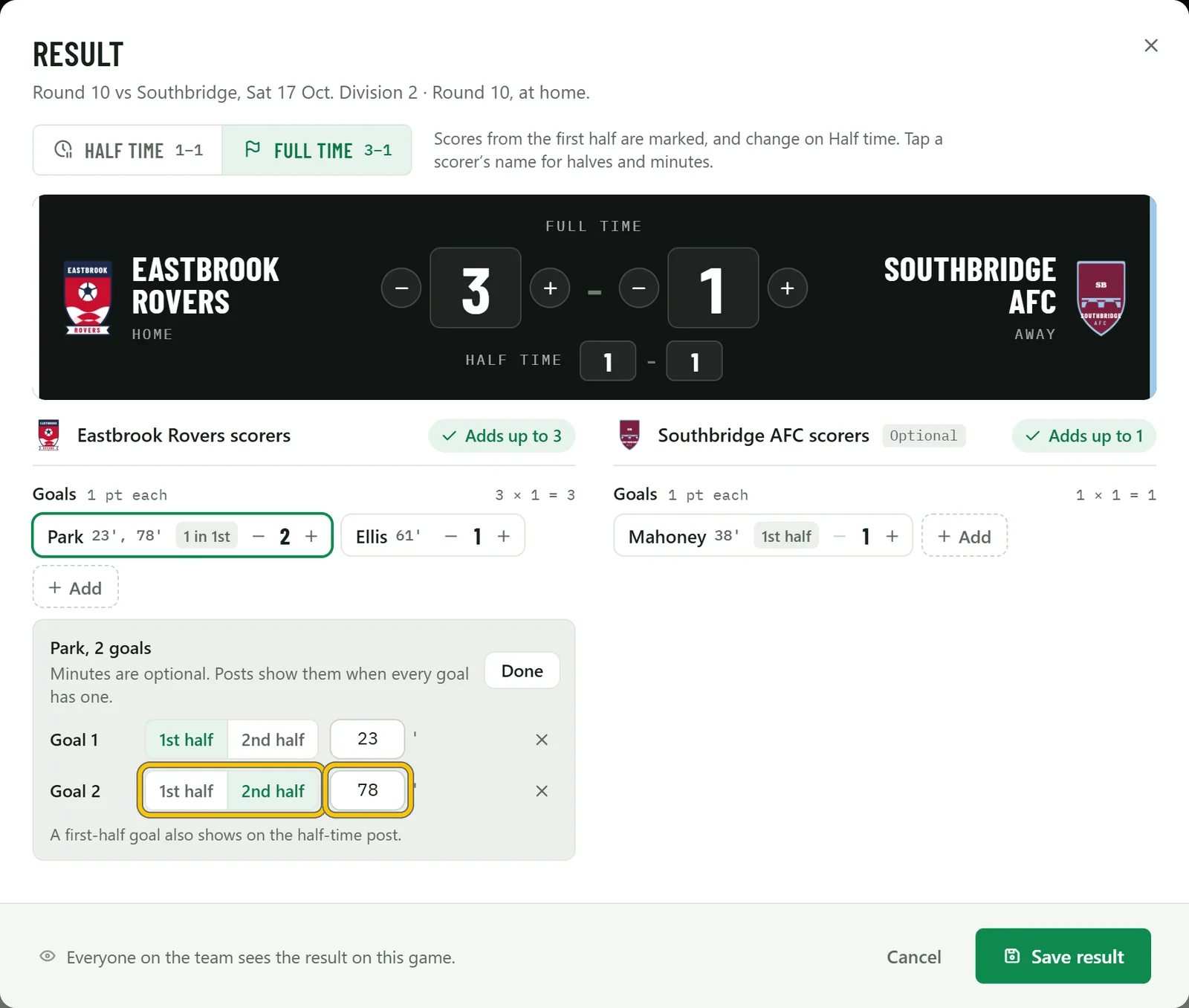
Good to know Everyone on the team sees the result on the game, and the schedule shows it from your side, like W 3–1.
-
If the score changes
Choose Edit result to correct the score or a scorer. Posts you’ve made aren’t deleted. A post the change affects is marked Out of date, and Make it again opens it in the same look, format and kit, so you only choose Make post.
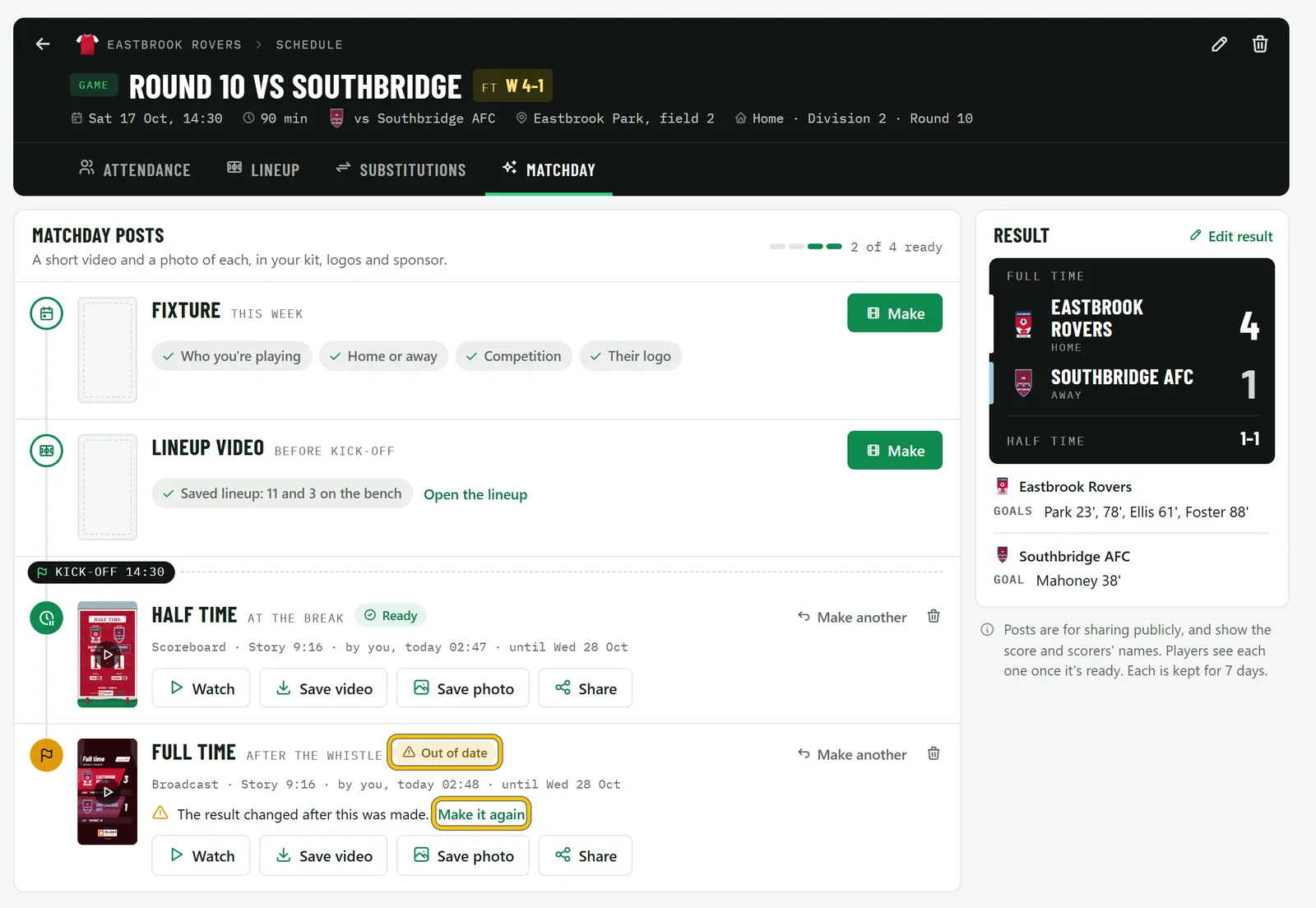
Good to know Players see Out of date too, so nobody shares an old score by mistake.
-
Post from your phone
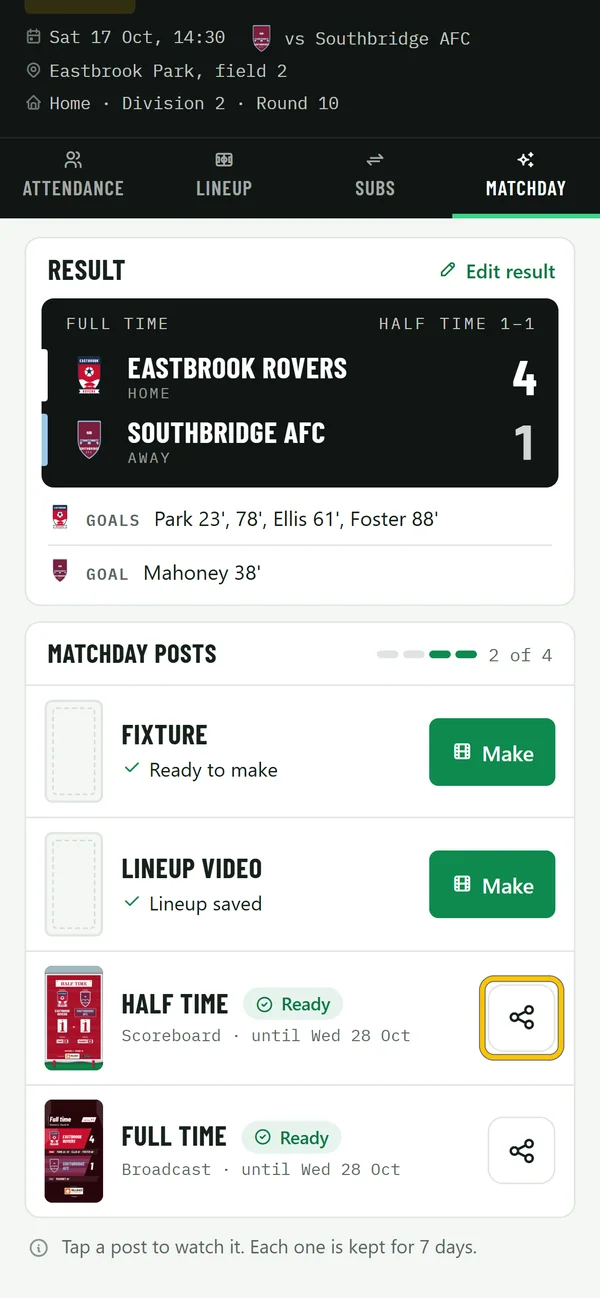
Everything works on a phone, so you can type the score at the break and post from the ground. Open the game, choose Matchday, and tap a post to watch it, save it or share it.
-
What you get
Each post is a short, silent video in your kit with both teams’ logos and your sponsor at the end, and a photo of its last frame. These are the three posts made in this guide.