Guide 8 of 10
Add your team logo, sponsor and opponents
Your logo goes on your promo videos, matchday posts and export scoreboards, and your sponsor’s can go at the end of them. Add them once on the team’s Settings, along with the teams you play.
Logos and opponents work on every plan. The promo videos and matchday posts that show them need the Coach plan. See the plans
Steps
Steps
-
Open Settings and add your logo
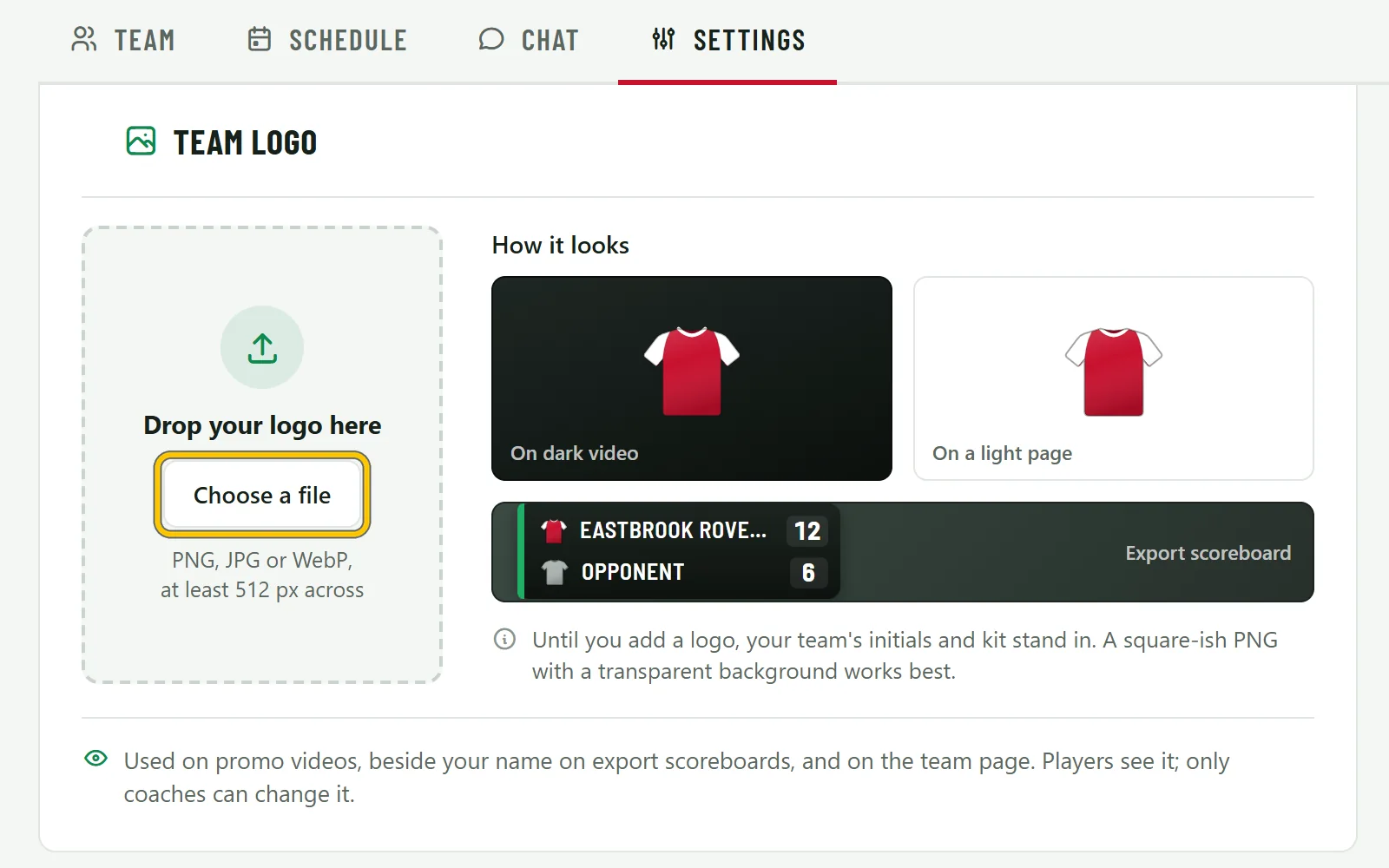
Open your team and choose Settings. Under Team logo, drop your logo file on the card or use Choose a file. It can be a PNG, JPG or WebP, at least 512 pixels across.
-
Check how it looks
How it looks shows your logo on dark video, on a light page and on an export scoreboard. A logo with a solid background shows as a box on dark video, and the card tells you so. Choose Replace and pick a PNG with a transparent background, and it sits cleanly on all three.
Your logo goes on promo videos and matchday posts, beside your team name on export scoreboards, and on the team page.
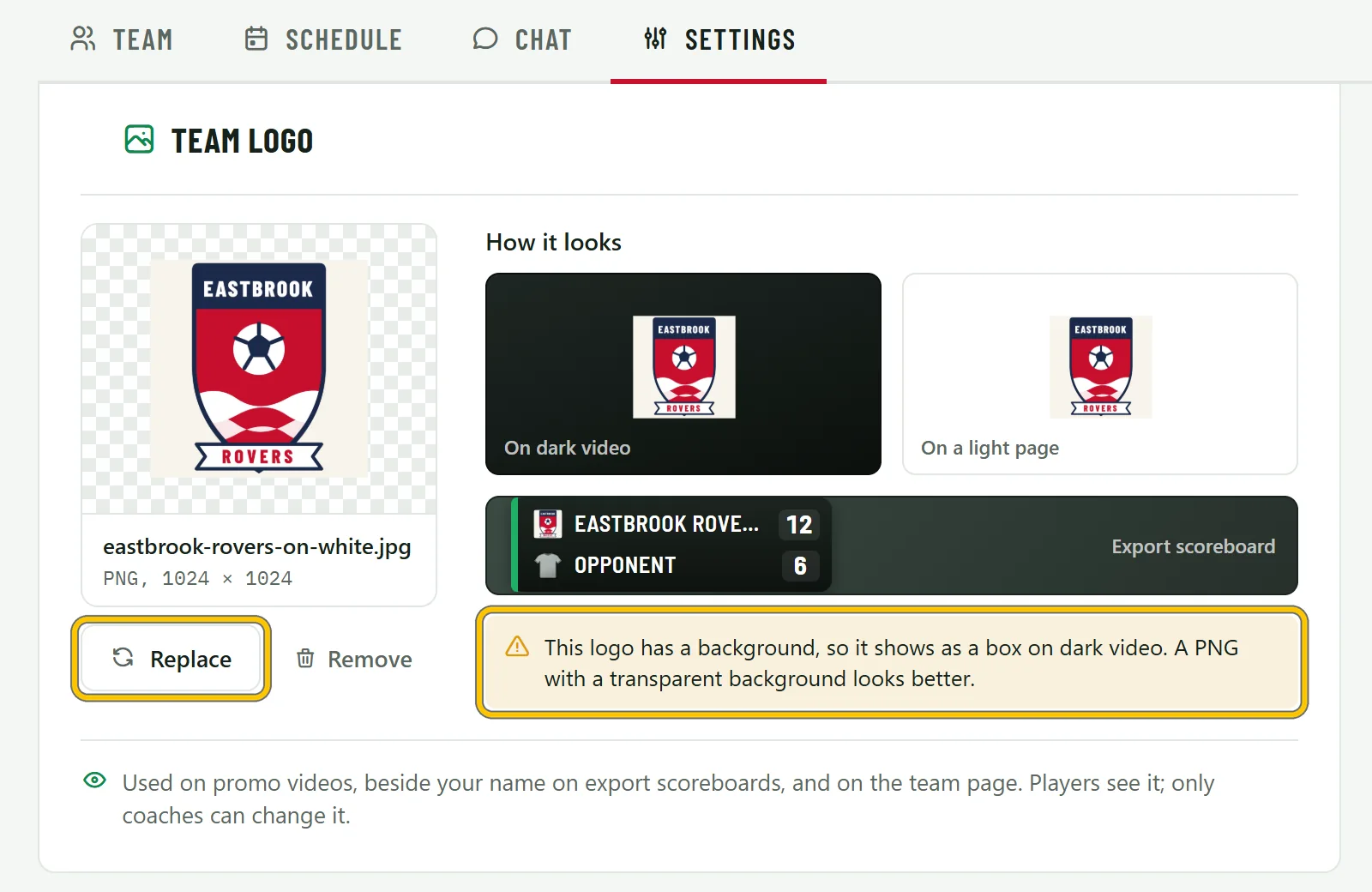
Good to know Players see the logo, but only coaches can change it. Until there’s a logo, your team’s initials and kit stand in.
-
Add your sponsor’s logo
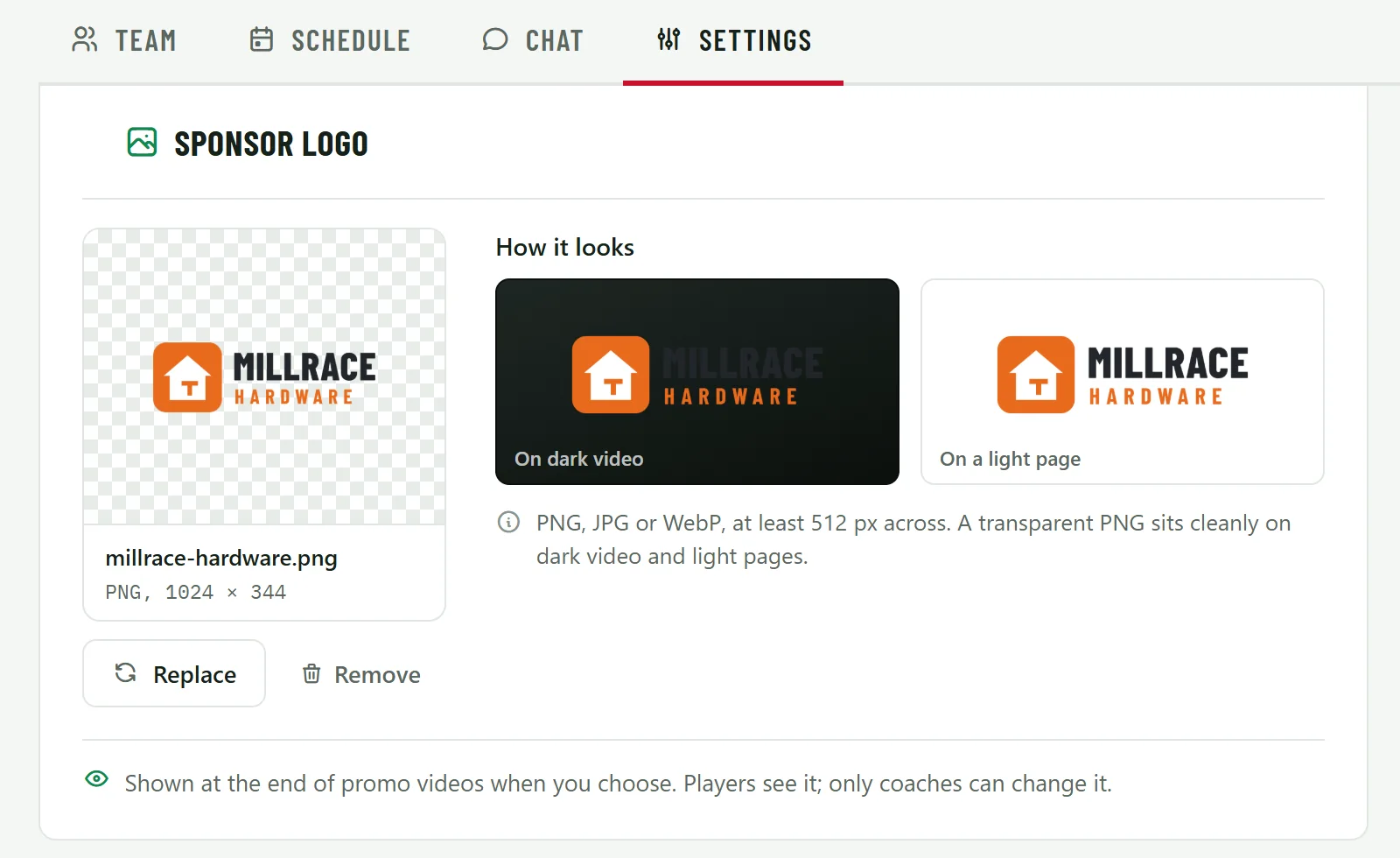
Under Sponsor logo, add your sponsor’s logo the same way. When you include it, it shows at the end of a promo video or matchday post, beside the ClipItCoach logo with “Supported by”. You choose whether to include it each time you make one.
-
Add the teams you play
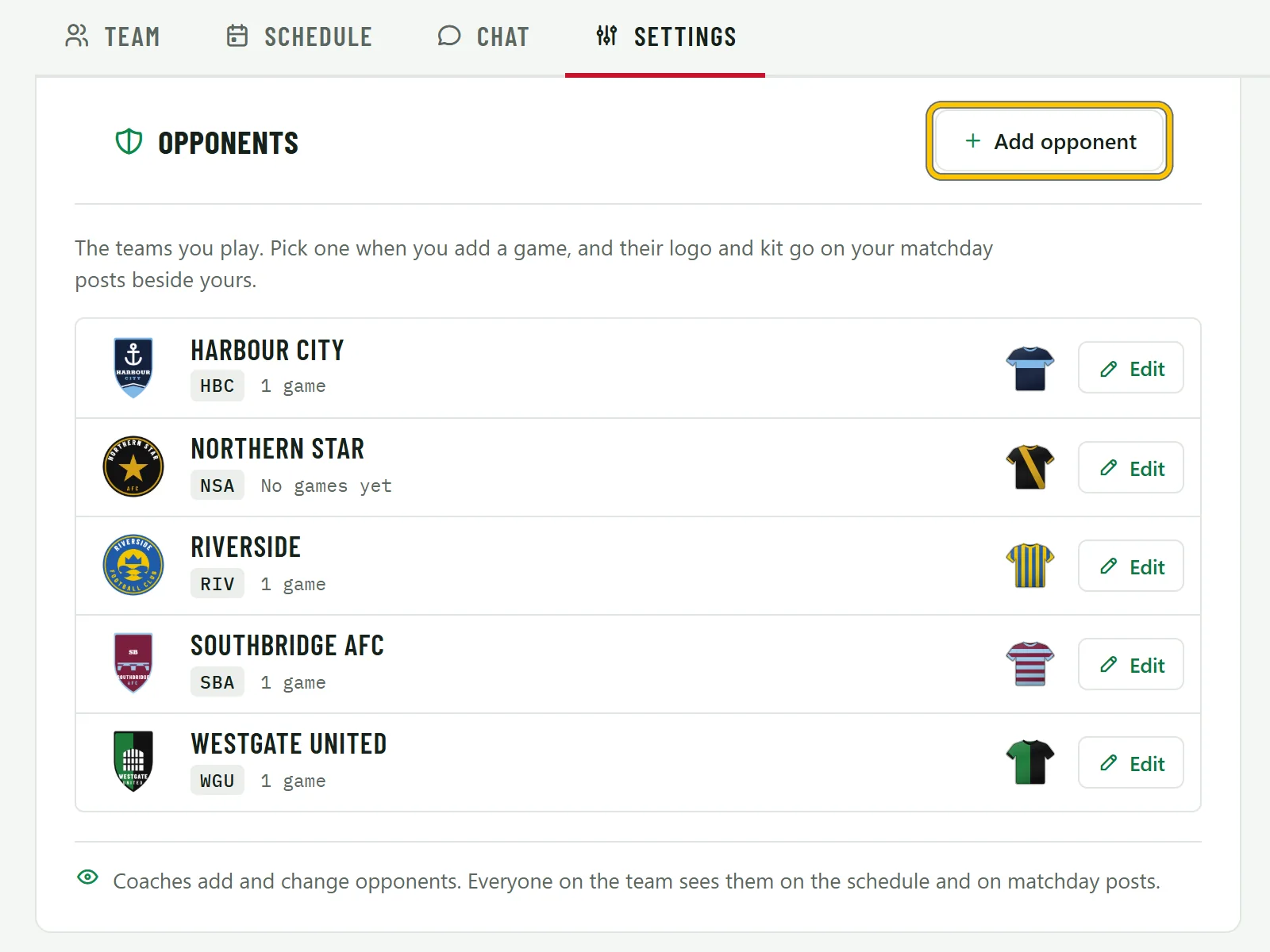
Further down Settings, Opponents lists the teams you play, each with their short name, how many of your games they’re in and their kit. Choose Add opponent to add one.
-
Their name, kit and logo
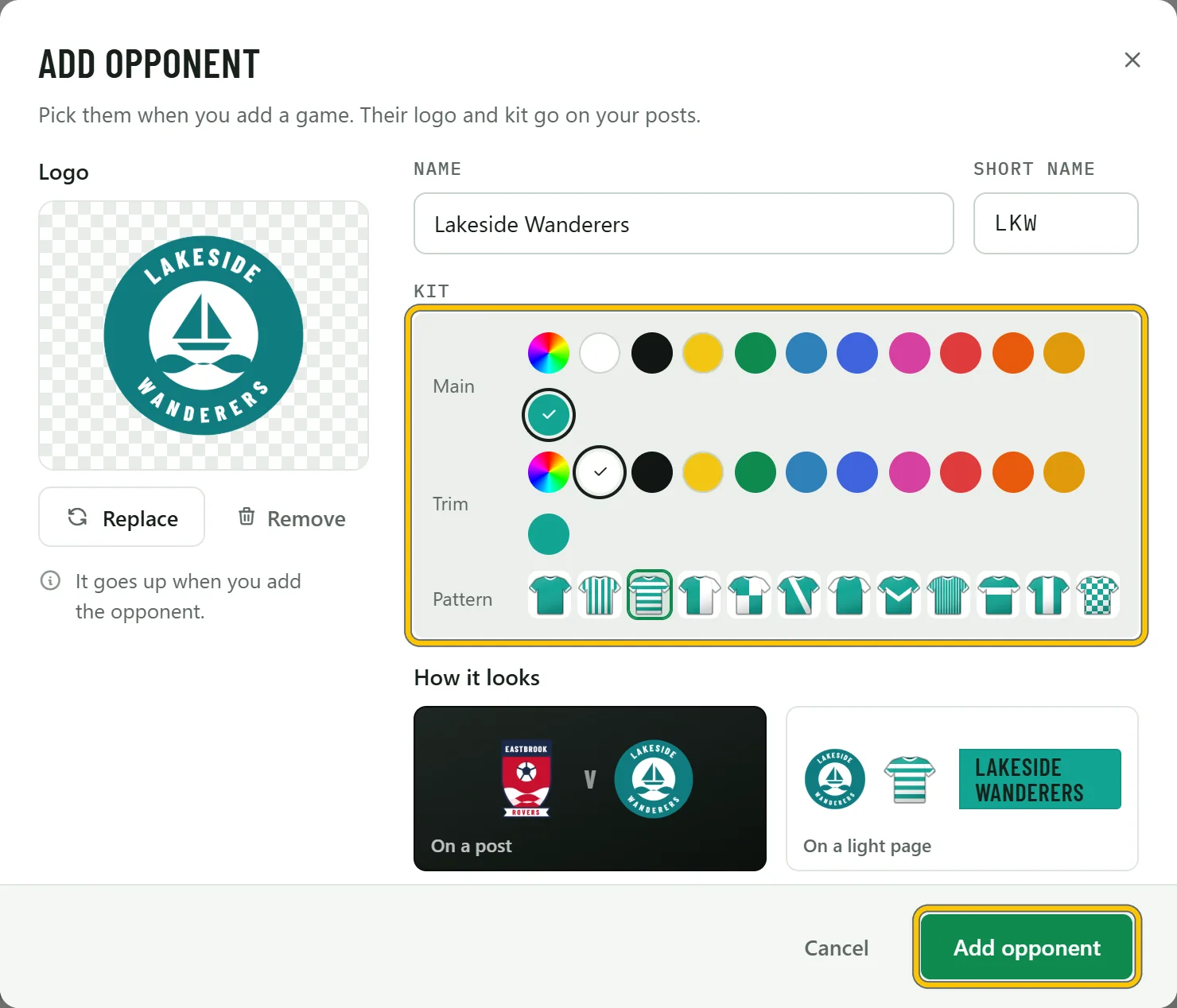
Type their Name, and a Short name of up to four letters if you want one; leave it empty and one is made from their name, like HAR for Harbour City. Pick their kit’s Main and Trim colours and its Pattern, add their Logo, and choose Add opponent.
A crest saved from their club website is fine from 256 pixels across. If it’s small, the dialog warns that it may look soft in videos.
Good to know To take a team off the list, choose Edit on it, then Remove from list. If one of your games is against them, they leave the list and that game keeps their name and crest. If not, they’re deleted with their logo.
-
Pick them when you add a game
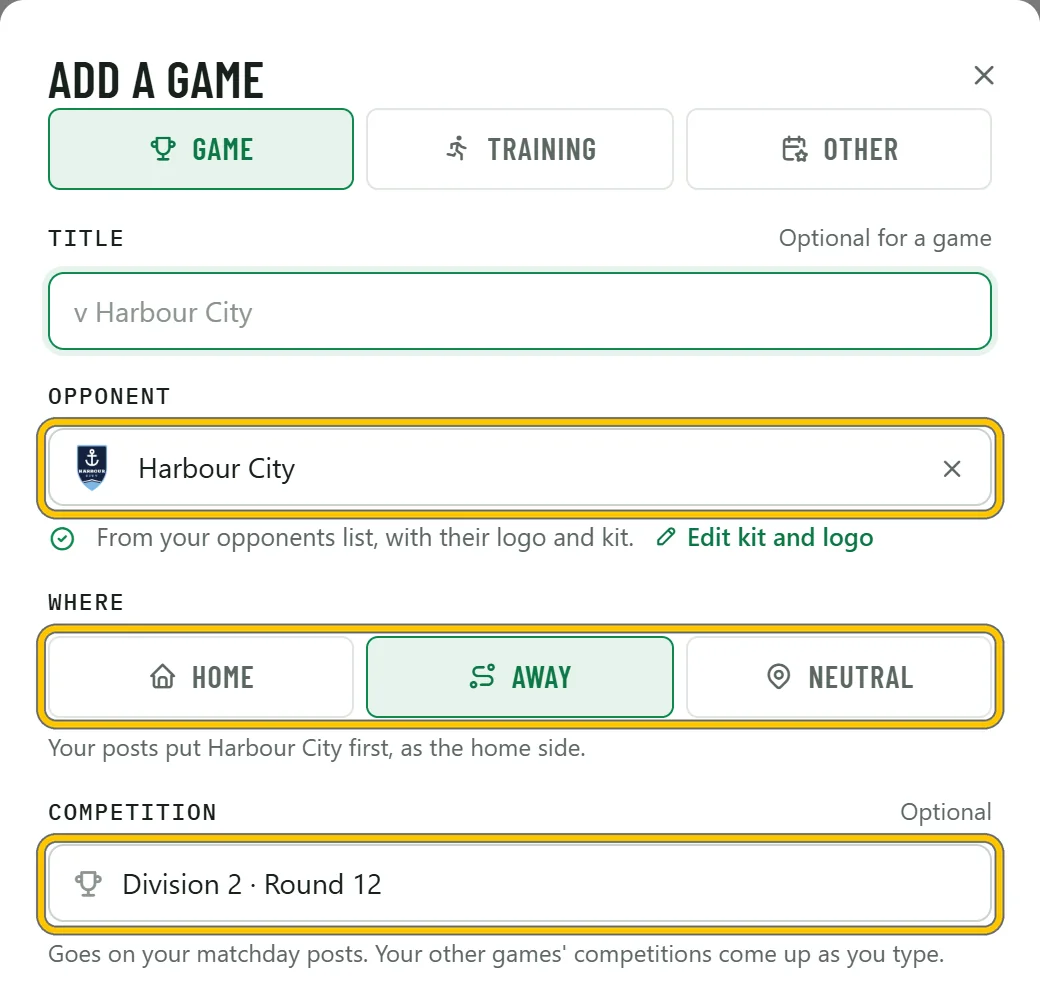
On the team’s Schedule, choose Add event. In Opponent, type part of their name and pick them from your list. Under Where, choose Home, Away or Neutral: posts put the home side first, so at an away game they come first. Competition is optional and goes on your matchday posts, like Division 2 · Round 12.
Good to know Playing someone new? Type their whole name and leave Save to your opponents ticked. They go on your list when you add the game, ready for their logo and kit colours, and until you add those their initials stand in, in grey.