Guide 5 of 7
Export highlights as a video
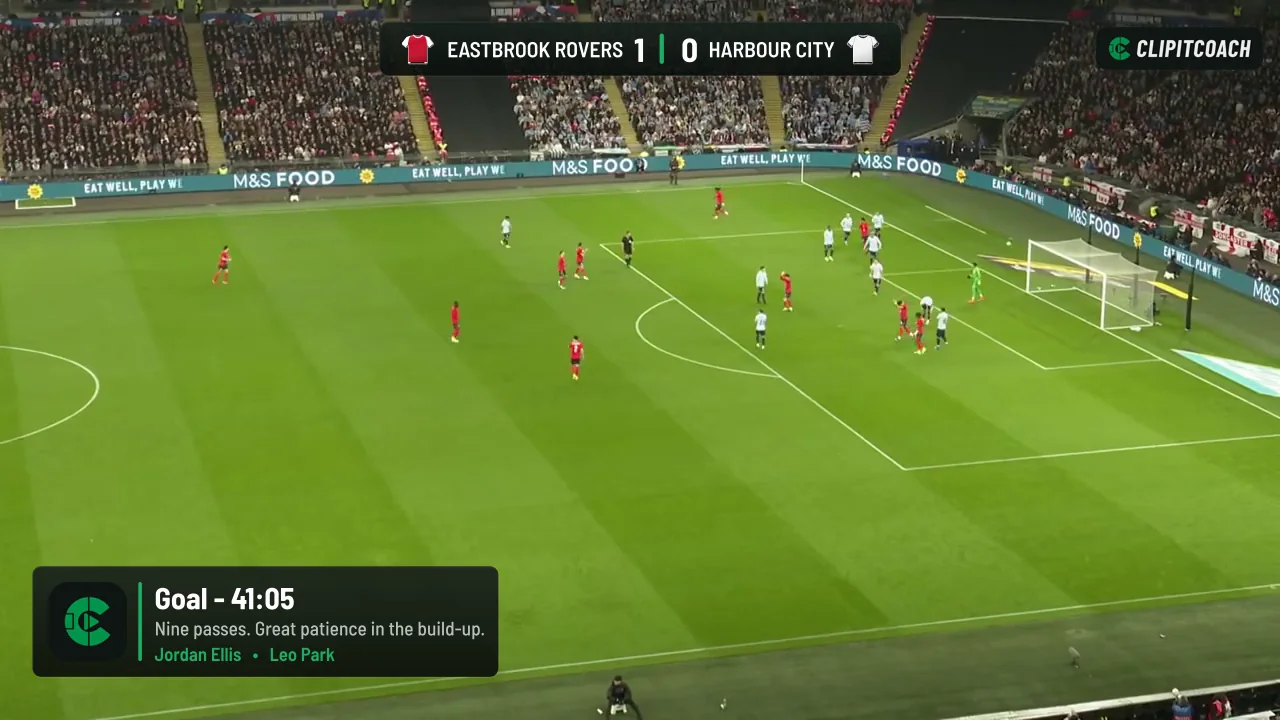
An export turns your clips into one video file, with the clip titles, your notes and a scoreboard drawn on. Download it and post it anywhere.
Exporting needs the Coach plan and a video uploaded to ClipItCoach. See the plans
Steps
Steps
-
Choose Export on the clips list
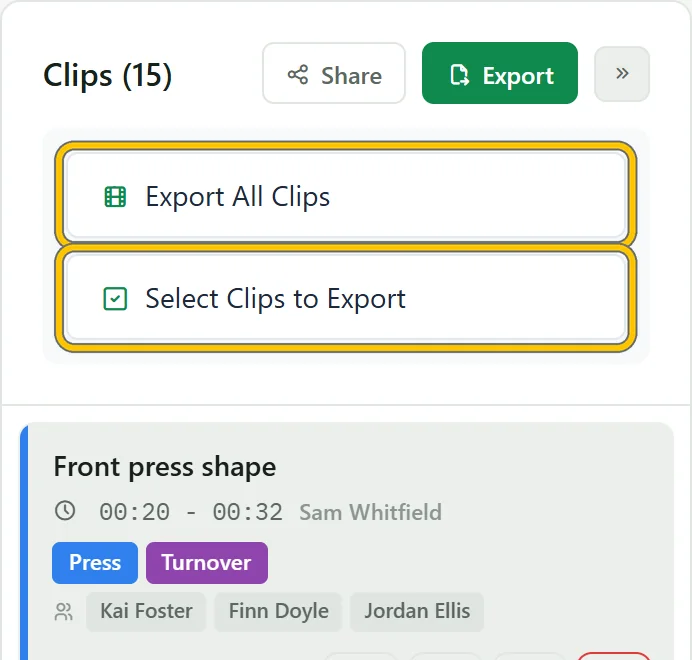
On the watch page, choose Export at the top of the clips list. Export All Clips puts every clip in; Select Clips to Export lets you pick.
-
Choose what’s drawn on
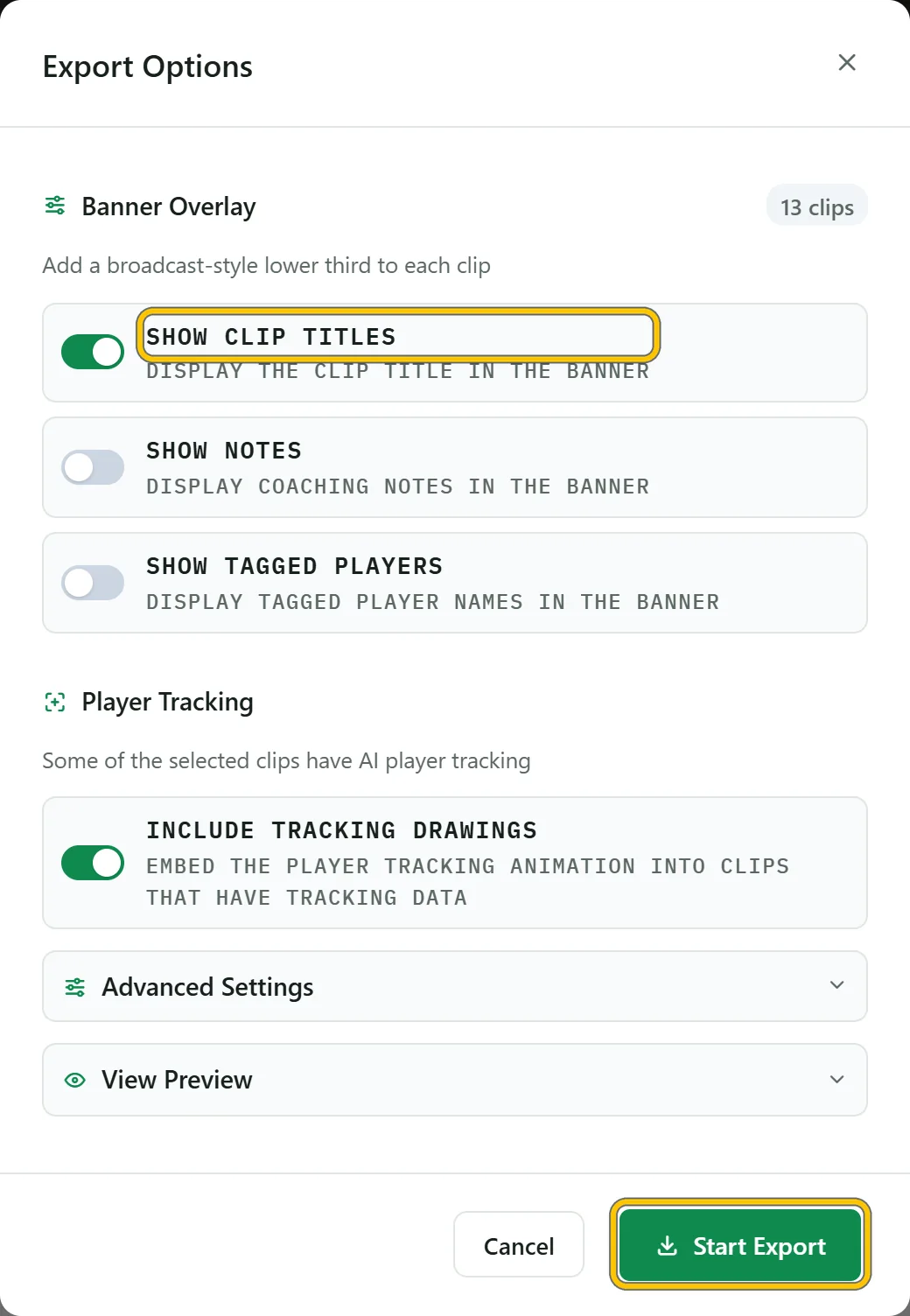
The banner on each clip can show its title, your coaching notes and the players involved. If your clips have AI tracking or animations, Include tracking drawings adds them too. Advanced Settings sets where the logo sits.
Then choose Start Export.
Good to know If your tags keep score, like a Goal tag, the export can show a scoreboard with both teams and your kit.
-
Carry on while it’s made
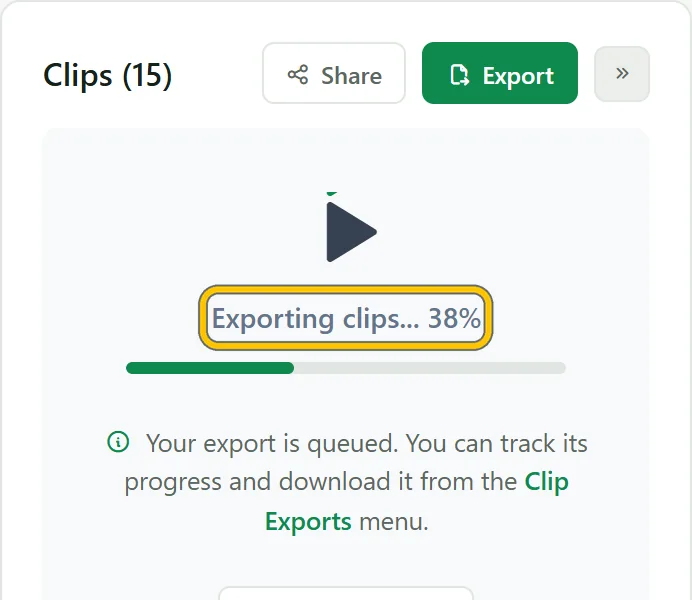
The export is made on our servers, so you can keep watching or leave the page. The progress shows on the clips list.
-
Download it
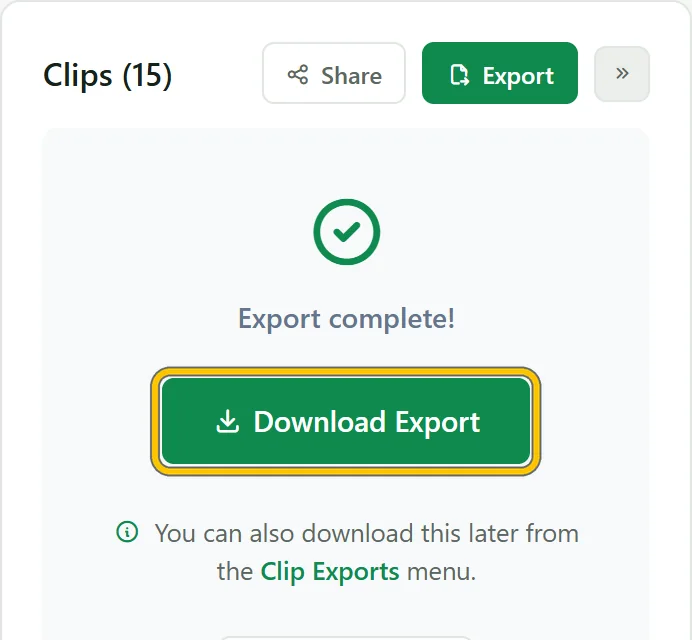
When it’s ready, choose Download Export to save the MP4.
-
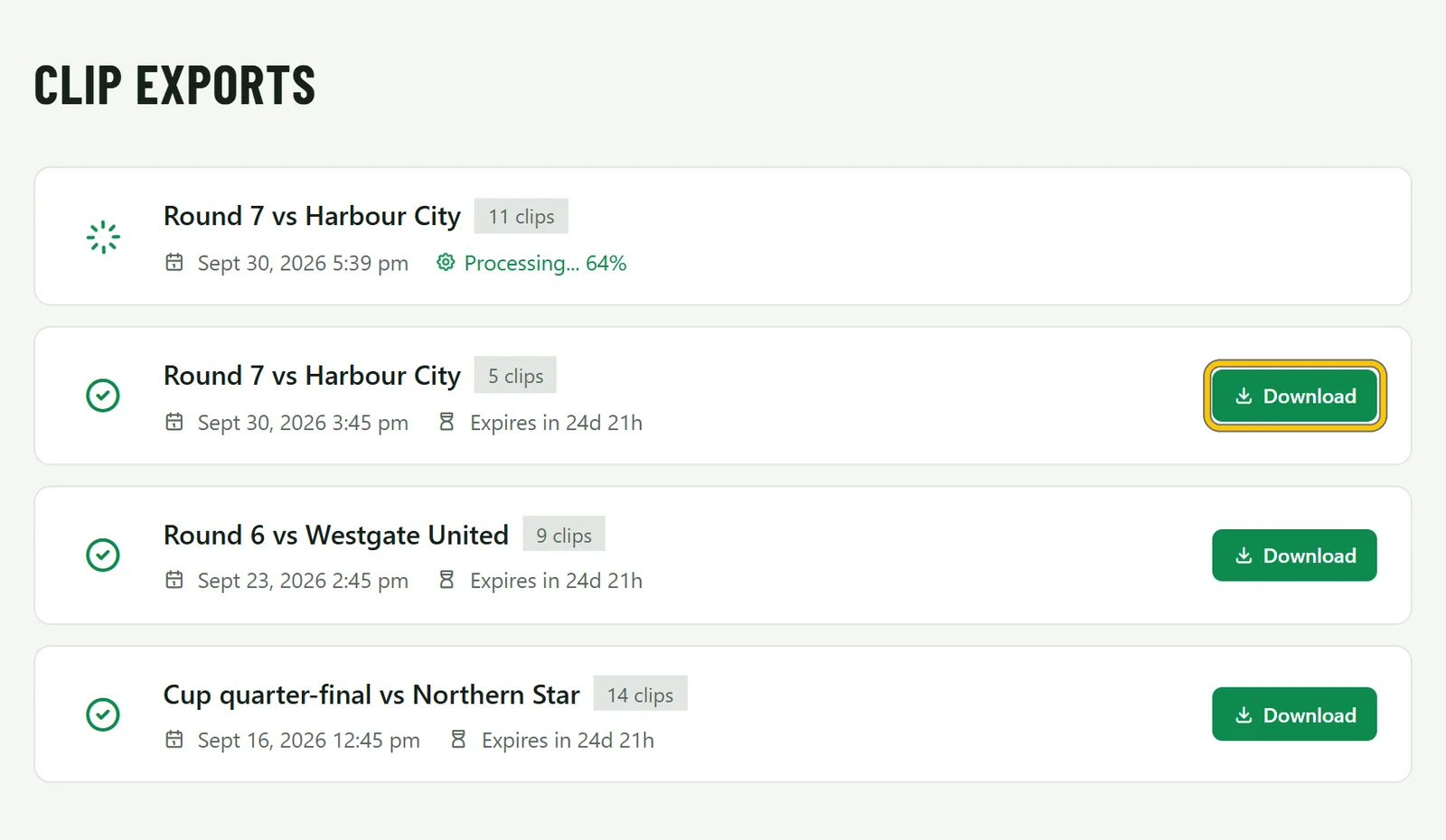
Find every export under Clip Exports
Clip Exports in the menu lists everything you’ve exported, each with a Download button. Download links expire after a while, so save the file somewhere you keep. You can export again whenever you need to.
-
What you get
Each clip gets a broadcast-style banner with its title, your note and the players, and the scoreboard shows both teams in their kits.