Guide 2 of 7
Upload a match
Add a game from your computer or your phone, or link one on YouTube. Big files are fine: if the connection drops, the upload picks up where it left off.
Uploading files needs the Coach plan. YouTube links work on every plan. See the plans
Steps
Steps
-
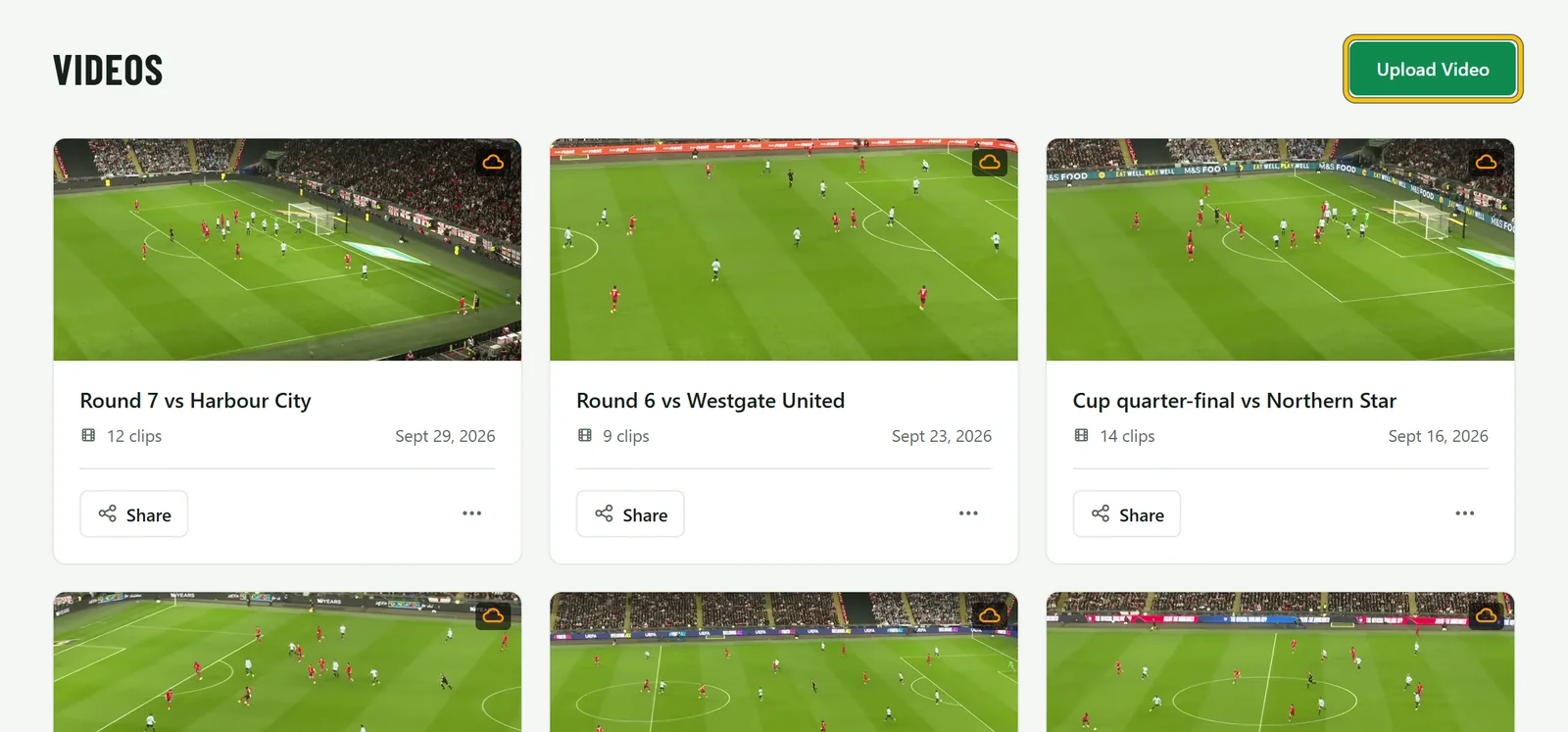
Open Videos and choose Upload Video
Go to Videos in the menu and choose Upload Video. If you’re on more than one team, pick which team the game is for first.
-
Choose a file or a YouTube link
Upload file sends the video itself to ClipItCoach. YouTube links a video that’s already on YouTube: paste its link and give it a title. On the Free plan, a team can have one linked video.
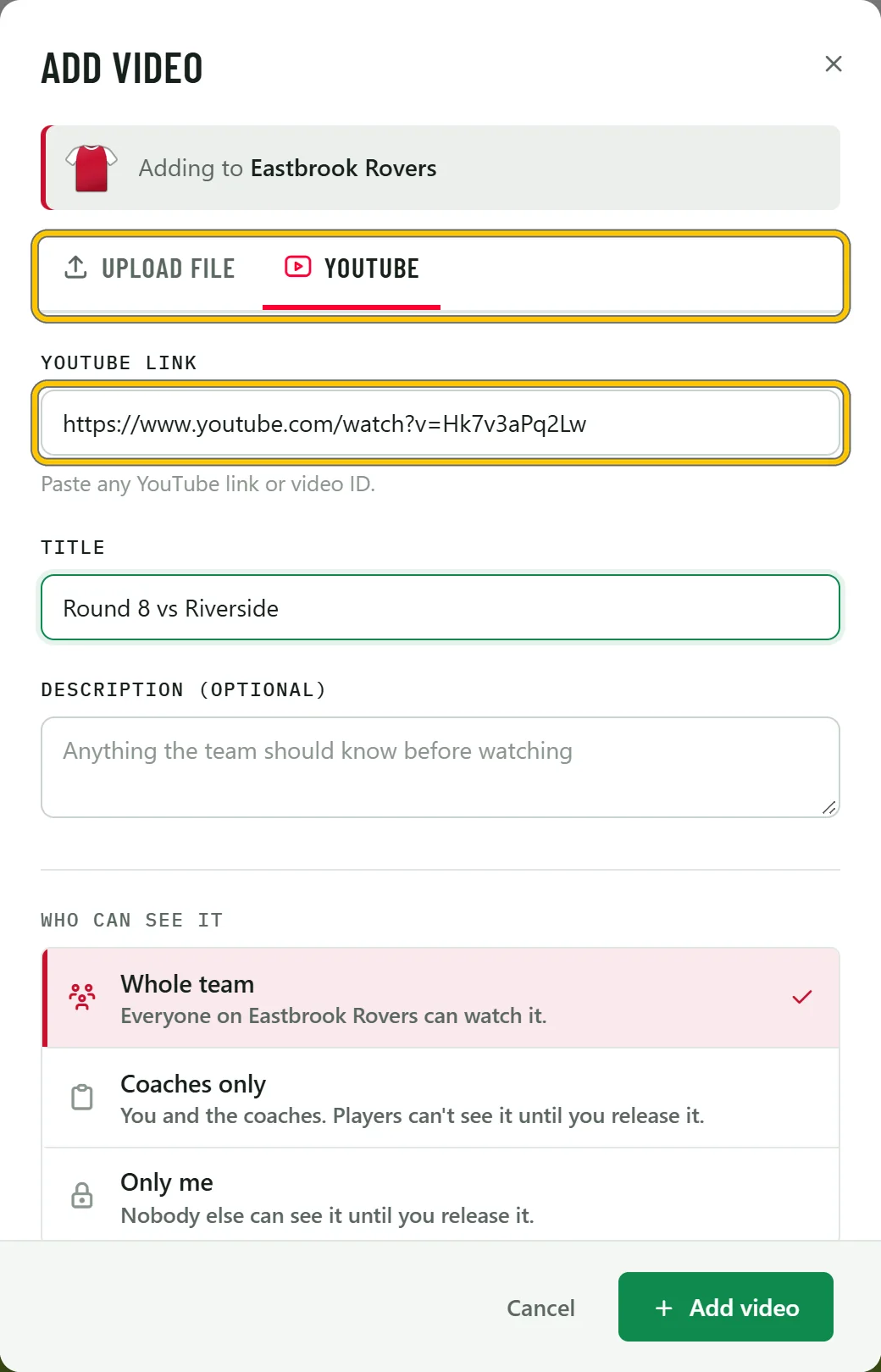
Good to know Uploaded videos get the most out of ClipItCoach. Exports, saved drawings and AI tracking all work on videos uploaded to ClipItCoach rather than YouTube links.
-
Add a title and choose who can see it
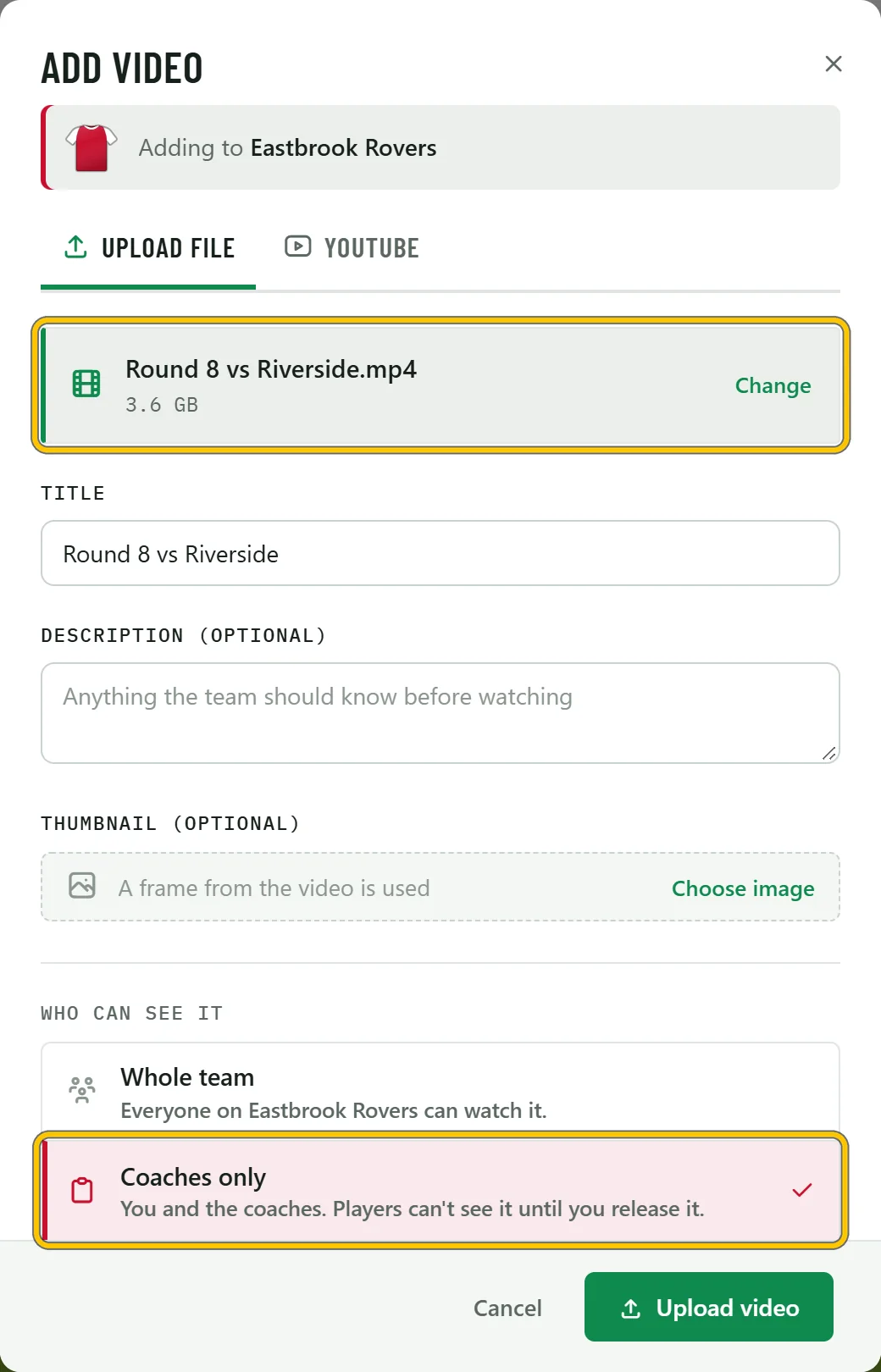
Choose your file and give the game a name your players will recognise, like Round 8 vs Riverside.
Under Who can see it, Whole team makes the game available as soon as it’s ready. Choose Coaches only if you’d rather clip it first: players won’t see it until you release it.
-
Keep the page open while it uploads
Choose Upload video. A full match can be several gigabytes, so the upload runs in the page with a progress bar. You can close the dialog and move around ClipItCoach while it runs, but keep the tab open.
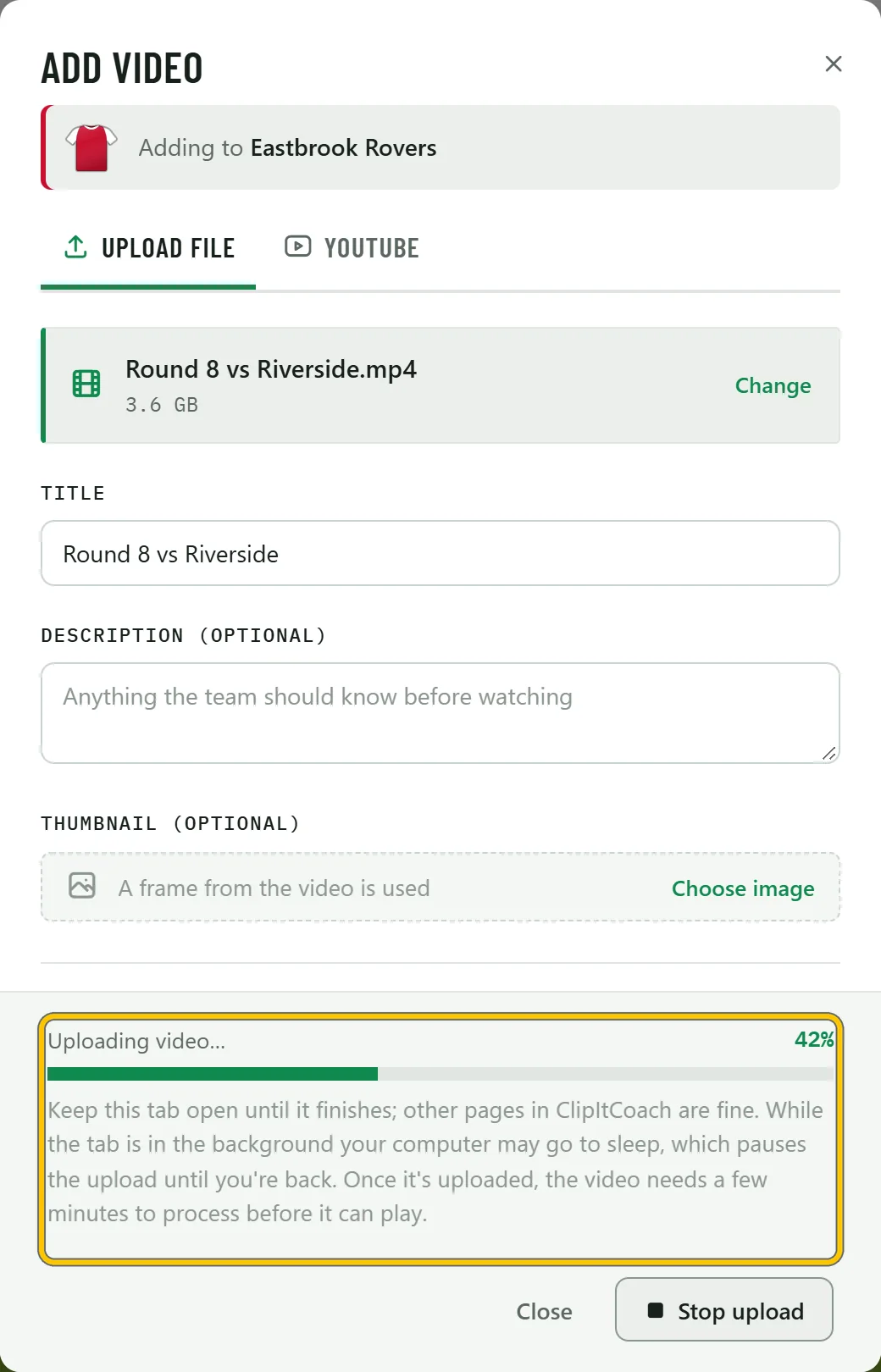
Good to know If the upload stops, choose the same file again on the same device and it carries on from where it got to instead of starting over.
-
Or upload from your phone
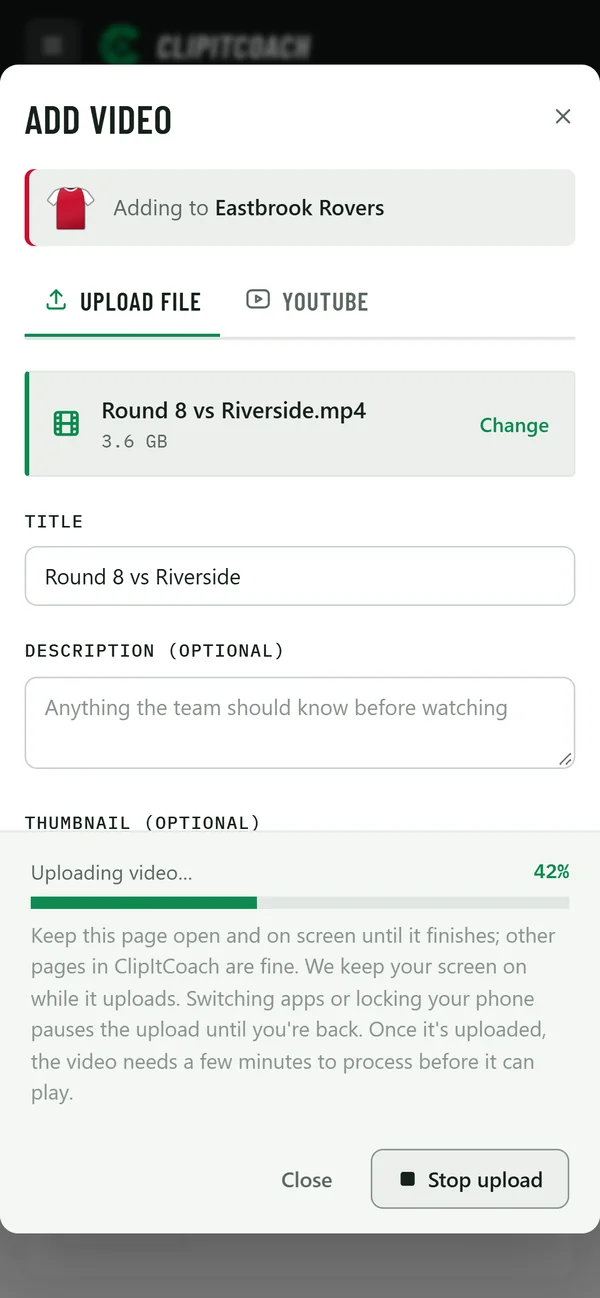
The same steps work on a phone. Keep ClipItCoach open and on screen until it finishes: switching apps or locking the phone pauses the upload until you come back.
-
Release it when you’re ready
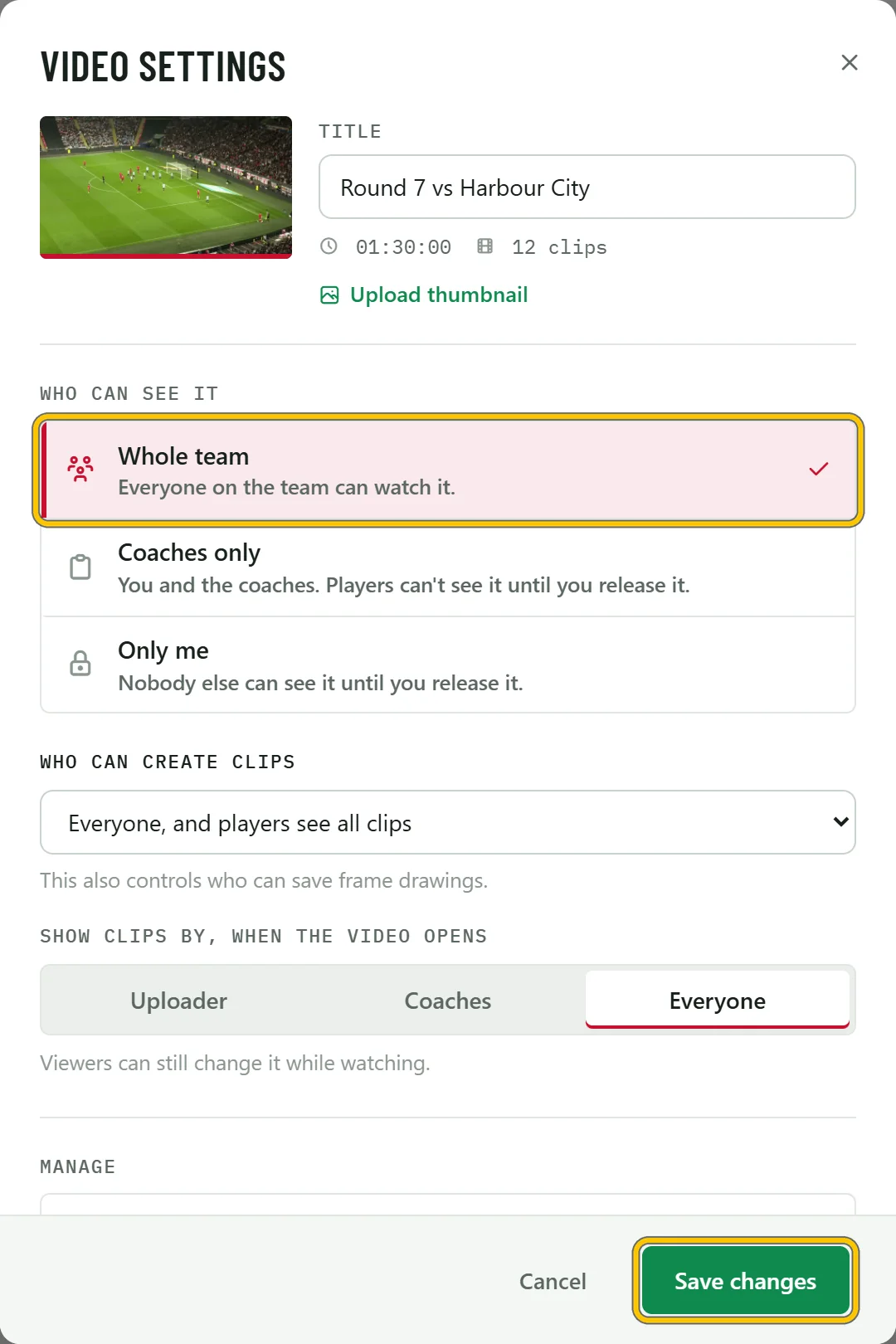
When the upload finishes, the video takes a few minutes to process before it plays. If you chose Coaches only, open the video, choose the gear for Video Settings, switch Who can see it to Whole team and choose Save changes.