On this page
On this page
The short answer
On a game's Lineup tab, the Promo video button turns the saved lineup into a short MP4 of the starters and the bench, in one of three looks: Team sheet, Kit room or Broadcast. Choose Story (1080 × 1920) for Reels, TikTok and Stories, or Post (1080 × 1350) for the feed, and the home or away kit.
It takes about a minute to render and comes with a paid plan. Players can watch and save the finished video from the same game.
Making one
The video is drawn from the lineup you already keep in ClipItCoach, so there is nothing to type twice. Set the lineup up as usual, on the game's Lineup tab, and save it. Then:
- Press Promo video in the Lineup tab's toolbar. On a phone it is the film icon.
- Pick a Style. Each card plays a sample made for a made-up club, so you can see the motion before choosing.
- Pick a Format: Story or Post.
- Under Include, choose whether to show the bench, the Fixture details (the date, kick-off time and venue) and your sponsor's logo.
- Pick the Kit: home, or away if the team has an away kit.
- Press Make video.
Rendering takes about a minute. You can leave the screen while it runs, and you get a notification when the video is ready. The footer of the dialog says how long the video will be before you make it.
The video always uses the saved lineup. If you have moved players since saving, the dialog asks you to save first, so the video never shows a team you were still deciding on. For a sport with more than one unit, such as American football's offence and defence or ice hockey's lines, you pick which one to show.
Three looks
- Team sheet — shirts drop onto the team sheet, name by name, on a two-colour poster in your kit.
- Kit room — each shirt goes up on its peg in the changing room, name and number on the back.
- Broadcast — a TV-style team list in your kit colours: the starters in position on the pitch with their name tags, and the bench beneath.
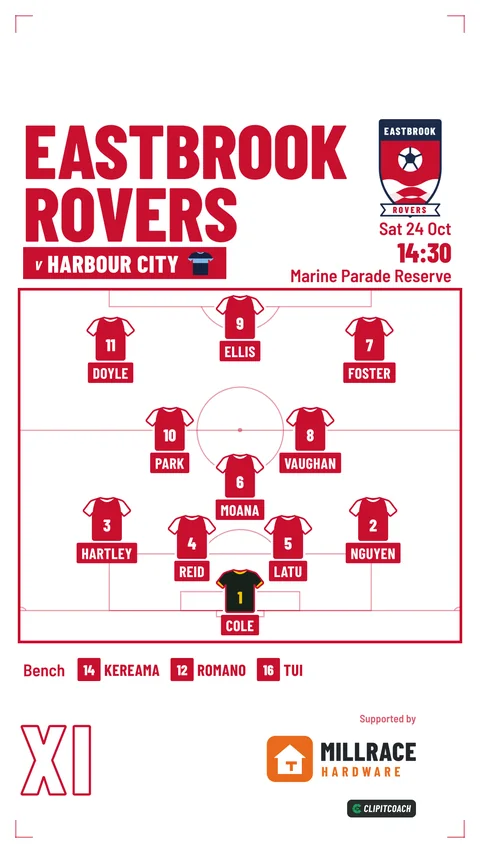
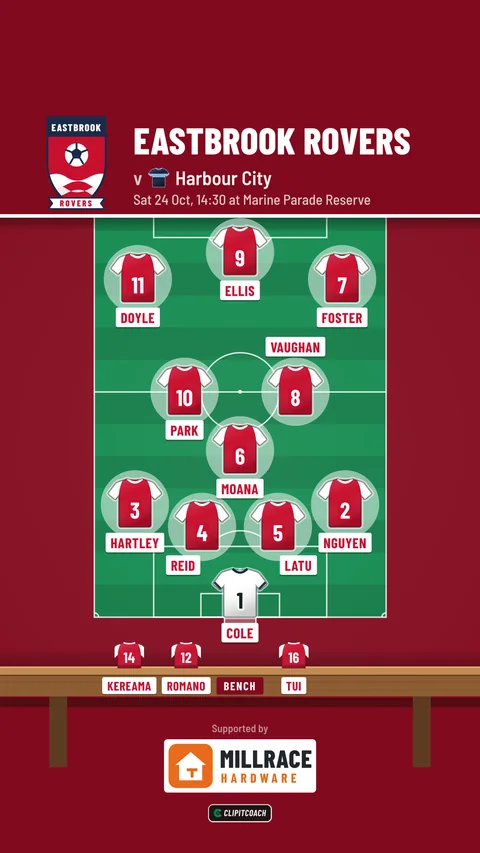
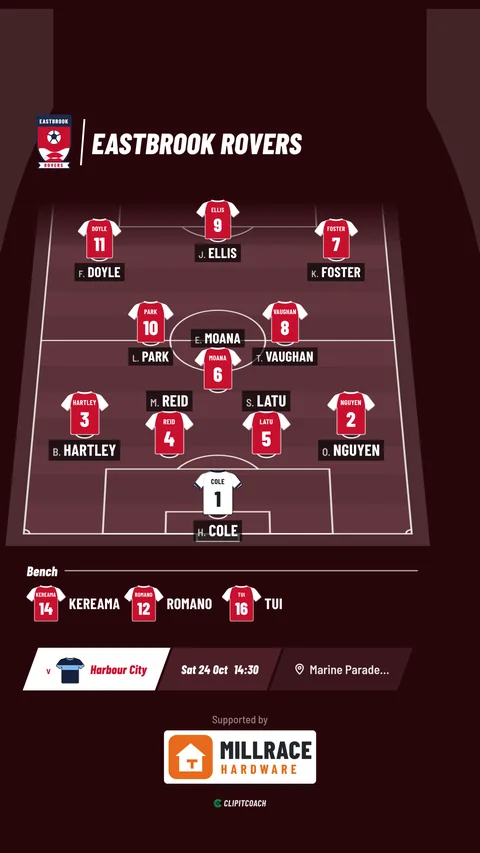
Every look plays a few seconds of movement and then holds the finished team long enough to read. Each comes in both shapes, and each draws the field of your sport from the lineup editor, so a netball court, an ice rink and a rugby pitch all look like themselves.
Your kit, logo and sponsor
The shirts are your team's kit: its colours and its pattern, home or away, as set on the team. The video uses the team logo and the sponsor logo from the team's Settings, where a coach uploads them as a PNG, JPG or WebP at least 512 pixels across. A logo with a transparent background looks best, and the card says so when yours has a solid one. Until a team has a logo, its initials and kit stand in.
Every video ends on the ClipItCoach logo. When you include the sponsor, their logo sits beside it with “Supported by”, never near your crest. The team logo guide covers the upload.
Names print as the shirt would: the surname, particles and all (VAN DER MERWE), with an initial when two players share a surname. A name the video's fonts cannot draw shows the shirt number or position instead, so no name is ever printed as empty boxes.
The bench
Every look shows the whole bench, in the order you saved it, up to 14 substitutes and 23 players in all. That covers a rugby union matchday 23 and every other common squad. If a lineup has more, the first ones are shown, the bench label ends with how many more there are (“+3”), and the dialog says so before you make the video. In practice only American football reaches that limit.
Long names get room before they get smaller: each look spreads the bench over more rows, or onto another bench, before it shrinks the text.
Sound, sharing and keeping it
The video is silent. It carries a silent sound track, because some platforms expect one, so add your music or a trending sound in Instagram or TikTok when you post it.
A finished video has Download, and Share where your browser can share files. In the Android app, Share to apps sends it through the phone's share sheet, so it can go straight to Instagram, WhatsApp or wherever the team posts.
Each video is kept for 7 days from when it is ready, so save the ones you want to keep. Making another is quick, and a deleted video is gone for everyone.
Who can make one
- It needs a paid plan. On a free team, coaches see the three looks with their samples and Upgrade Now; pricing has what the Coach plan includes.
- Coaches and the team's owner make videos, from a game (not a training) whose saved lineup has at least one player placed on the field.
- Players see the Promo video button on the game's Lineup tab once a video is ready, and can watch it, save it and share it.
Promo videos are made for posting publicly, and they show each player's name. For a youth team, agree that with parents first; player privacy and safeguarding covers consent and what to publish. The lineup promo video guide goes through the dialog step by step, and chat and schedule covers lineups themselves.
Common questions
Does the lineup video have music?
No. The video is silent, with a silent sound track so every platform accepts it. Add music or a sound in the app you post it from, such as Instagram or TikTok.
Can players make a lineup video?
No. Coaches and the team's owner make them. Players see the Promo video button on the game's Lineup tab once a video is ready, and can watch, save and share it.
How long is a lineup video kept?
Seven days from when it is ready. Save it to your phone or computer to keep it, or make another from the same lineup later.
Which sports does the lineup video work for?
Any sport whose lineup ClipItCoach lays out on a pitch, court or field: football, both rugby codes, AFL, basketball, netball, ice and field hockey, lacrosse, American football and more. The video draws the same field as the lineup editor.