On this page
On this page
The short answer
Every game now has a Matchday tab holding four posts: Fixture, the Lineup video, Half time and Full time. Each is a short, silent video whose last frame is also saved as a photo, in the Story or Post shape. The three new posts come in five looks (Team sheet, Kit room, Broadcast, Ticket and Scoreboard); the lineup video keeps its first three.
A coach picks the opponent from the team's new opponents list, types the score and the scorers in after the whistle, and makes each post when it is due. The posts come with a paid plan, and players see each one once it is ready.
The Matchday tab
Open a game from the team's schedule and the Matchday tab is the last of its tabs, after Attendance and Lineup. It has two halves: the Result card, with both teams' crests, the score and the scorers, and the list of Matchday posts, in the order a game day runs.
- Fixture — the game announced: both teams, the date and the start time, and the venue and competition when the game has them.
- Lineup video — the lineup video, made from the saved lineup. The Lineup tab keeps its own Promo video button too.
- Half time — the half-time score and the first-half scorers.
- Full time — the final score and every scorer.
Each post shows what it still needs as a row of chips. The three new posts need to know who you are playing; half time also needs the half-time score and full time the final score, and the lineup video needs a saved lineup. Other chips only make a post better: home or away and the competition on the fixture, the opponent's logo on all three, and the scorers. A coach can tap a chip to go straight to whatever fills it.
A finished post carries Watch, Save video, Save photo and Share (in the Android app, Share video and Share photo), and whoever can make posts also gets Make another and delete. The photo is the video's settled last frame, for anywhere a still works better than a video. Save photo now sits beside every lineup video as well.
Five looks
The first three looks carry on from the lineup video, so a team that posts its lineup in one look can keep the whole week in it. The other two are new.
- Team sheet — a two-colour print poster in your kit, with the kick-off time or the score in giant numerals.
- Kit room — your changing room, set for the game.
- Broadcast — a TV scoreboard in both teams' colours.
- Ticket — a printed match ticket, stamped with the score.
- Scoreboard — the ground's scoreboard, turned to the score.
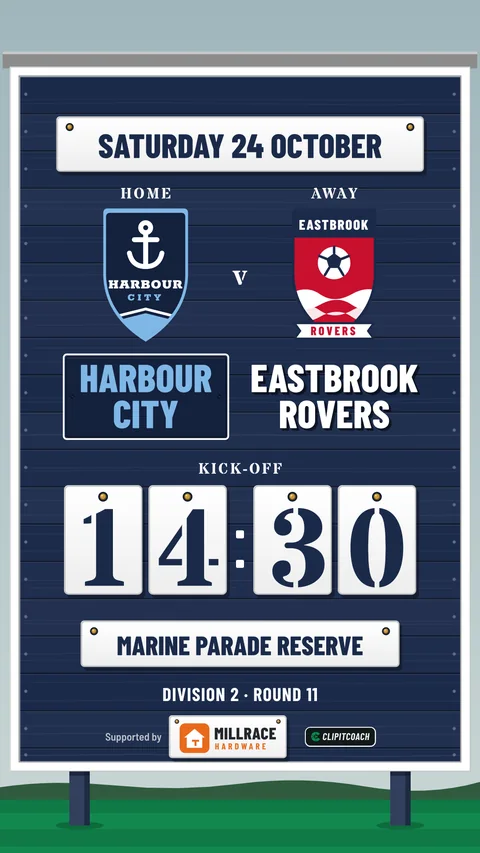
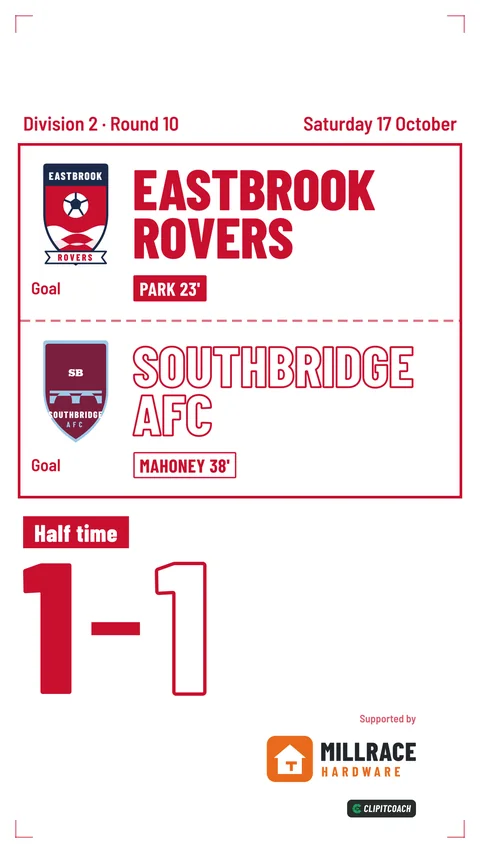
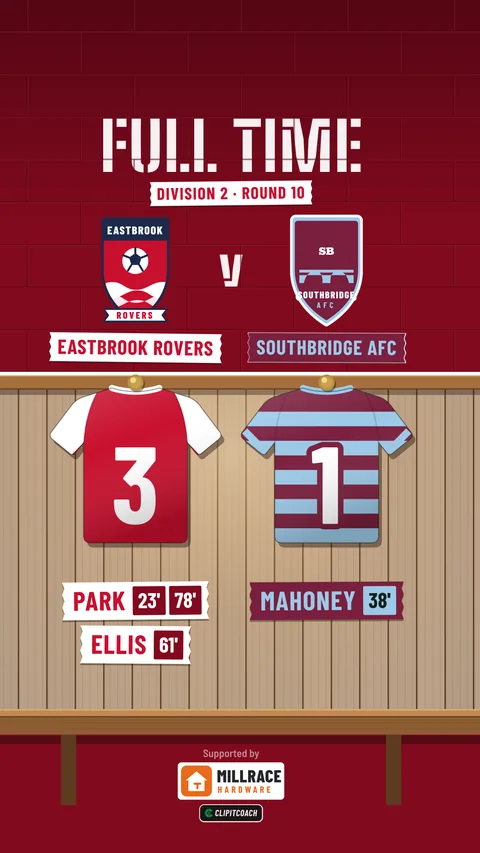
Every look comes in Story (1080 × 1920, for Reels, TikTok and Stories) and Post (1080 × 1350, for the feed). A post is a few seconds of movement that settles into the finished picture, and the dialog shows its exact length before you make it. Like the lineup video, it is silent, so add a sound in the app you post from.
Teams are written home first, the way fixtures are: at an away game the opponent comes first. The fixture uses your sport's word for the start (Kick-off, Tip-off, Puck drop or First pitch). Your kit defaults to the away kit at an away game when the team has one. When the two kits are too alike to tell apart, the opponent's colours are adjusted on the post; yours never change.
Opponents and their logos
A result post looks finished when both crests are on it, so each team now keeps a list of the teams it plays. Coaches add them on the team's Settings, under Opponents, with Add opponent:
- the name, and a short name of up to four letters for where space is tight;
- their kit colours and pattern;
- their logo, a PNG, JPG or WebP. A crest saved from a club website is often small; the app takes one from 256 pixels across and warns when it may look soft in a video.
When you add a game, the Opponent field picks from that list. Typing a name that is not on it still works: the app offers to save it to your opponents as you go, and a game with only a typed name gets the opponent's initials on a grey crest, in a plain grey kit. Removing an opponent that a game uses only takes it off the list, so those games keep its name, kit and logo.
The same Settings page holds your own team logo and your sponsor's logo; the team logo and opponents guide walks through both.
Home, away and the competition
Games now record Home, Away or Neutral under Where, and a Competition, which is free text: a league and round, a cup, or a tournament. The field suggests the competitions the team has used before, so the league is not typed out every week.
Both are optional. They print on the fixture post when they are set, and Where decides which team the posts put first.
Entering the result
After the whistle, or at half time, a coach opens the game's Matchday tab and chooses Add half-time score or Add final score. The result is entered the way the posts draw it: the score with − and + buttons, a Half time and Full time switch, and a tray for each way your sport scores.
- Your scorers are picked from the squad and the team's fill-ins, with a minute if you want one and the half they scored in.
- Their scorers are optional, typed by name.
- Score types follow the way clubs write their results: tries, conversions, penalties and drop goals in rugby union, with rugby league's conversions and penalties counted as goals; goals in football, own goals included; a total per player in basketball and netball.
The scorers never have to add up to the score. A coach can enter the score alone, and every look is designed to look complete with no scorers on it. Names print as surnames, particles and all, with an initial when two of your scorers share a surname.
Once the result is in, the game's card on the schedule shows it from your side, with the letter: W 26–18. Players see the result on the Matchday tab too.
When the score changes after you post
Results get corrected: a try credited to the wrong player, a late goal missed in the excitement. Changing the result never deletes a post, because it may already be shared. Instead the post is marked Out of date on the Matchday tab, and coaches get Make it again. Players see the same mark, so nobody shares an old score without knowing.
Who can make them, and who sees them
- Making posts needs a paid plan. A team's coaches and its owner make them. On a free team, coaches see the five looks with sample posts and an Upgrade Now button; see pricing for what the Coach plan includes.
- The result is typed in by a coach of the team.
- Players see each post on the Matchday tab once it is ready, and can watch it, save the video or the photo, and share it. Until a coach has made one, the tab tells them their coach's posts will show there.
- Each post is kept for 7 days, so save the ones you want to keep. The coach who made it gets a notification when it is ready, usually in about a minute.
Matchday posts are made to be posted publicly, and a result post shows your scorers' names. For a youth team, that is worth settling with parents before the season; player privacy and safeguarding covers how.
The matchday posts guide goes through the tab step by step, and chat and schedule covers setting up the game itself.
Common questions
Do I have to enter the scorers?
No. Every post always shows the score, and the scorers are optional. The looks are designed to look complete without any, so a coach who only types the final score still gets a finished full-time post.
What happens if I correct the score after making a post?
The post stays where it is and is marked Out of date on the Matchday tab, and coaches get Make it again to render a new one. A post you have already shared is not withdrawn, so share the new one in its place.
Can I use an opponent who is not on our list?
Yes. Type their name on the game and the posts show their initials on a grey crest, in a plain grey kit. Save them to your opponents, with their colours and logo, whenever you want the posts to show their crest.
Can players see the matchday posts?
Yes, once each post is ready. Players open the game's Matchday tab to watch a post, save the video or the photo, and share it. Only coaches and the team owner can make posts.